A practical, vendor-neutral guide for CIOs, IT directors, and digital workplace leaders evaluating SharePoint consulting partners in Australia — including a comparison...
If you are managing SharePoint in an enterprise environment, you already know how fast permissions can get out of control. A team site begins with five people. Six months later you have 40 users with different access levels, some inherited, some directly assigned, and nobody really remembers why half of them exist.
That’s not just a governance issue. That is a security issue.
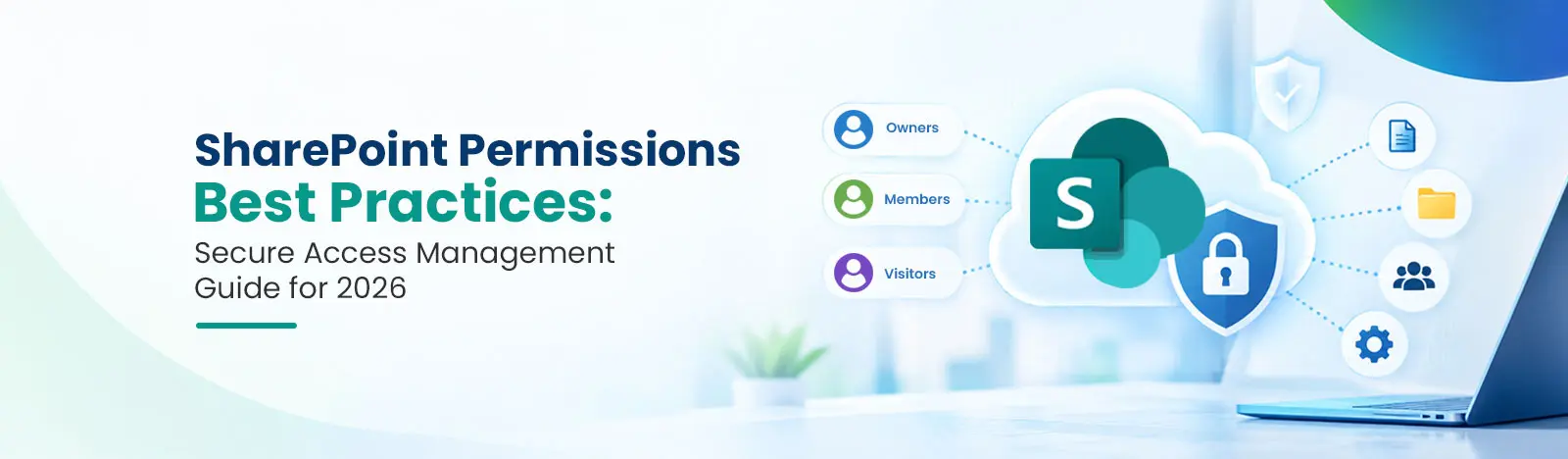
SharePoint permissions best practices come down to a handful of disciplined habits: grant the least access people need to do their jobs, assign permissions to groups rather than individuals, keep permission inheritance intact wherever possible, control external sharing with expiration policies, and audit access on a fixed schedule. Organizations that follow these practices turn SharePoint into a secure collaboration platform. Organizations that don’t accumulate risk with every new site.
The stakes are measurable. The Ponemon Institute’s 2025 Cost of Insider Risks A global report found that insider-related incidents now cost organizations an average of $17.4 million annually and take an average of 81 days to detect and contain. Improperly managed SharePoint permissions can expose sensitive documents, create compliance gaps, and leave former employees with access long after they have left the organization.
In this guide, we share:
How the SharePoint permission model actually works levels, scopes, groups, and inheritance
The security risks that poor permission management creates, including the new Copilot-era oversharing problem
Eight best practices we use with enterprise clients, and the mistakes we consistently see in the field
How to audit your environment step by step, using native tools and PowerShell
SharePoint permissions determine what each user can do view, edit, upload, delete, share, or manage content. Permissions are assigned to users or groups through permission levels, and they apply at one of four scopes: site, library, folder, or item. Getting this architecture wrong at the root level leads to governance problems that compound over time.
SharePoint Online ships with a set of default permission levels. Each one bundles a set of granular base permissions:
Permission Level
What users can do
What they can’t do
Best for
Full Control
Everything: site settings, users, content, structure
—
Site owners and trained admins only (1–2 per site)
Design
Everything in Edit, plus change pages, themes, and layouts
Manage site settings and users
Power users who maintain site structure
Edit
Add, edit, and delete lists and libraries as well as items
Change site settings
Team leads who manage libraries
Contribute
Add and edit items in existing libraries
Create or delete libraries
Most active content creators
Read
View pages and documents, download files
Add or modify anything
The majority of users
View Only
View documents in the browser
Download files
Sensitive documents that should stay in the browser
Limited Access
Access a specific item or folder shared with them
See anything else on the site
Assigned automatically by SharePoint when an item is shared — never assign it manually
Custom
A manually configured combination of granular permissions
—
Specific scenarios the default levels don’t cover
Custom permission levels are built from SharePoint’s underlying base permissions, which is useful when you need something like “Contribute without delete.” Keep custom levels rare and documented every one you create is another thing your future admins have to understand.
Permissions apply at four scopes, from broadest to most granular:
Scope
What it covers
Example
Site
The entire site
HR Portal site
Library / List
A document library or list within a site
Finance Reports library
Folder
A folder within a library
Q1 Reports folder
File / Item
A single document or list item
Budget_Q1_Final.xlsx
By default, permissions cascade down this hierarchy. If a user has Read access at the site level, they can read every library, folder, and file unless there is an explicit override.
Three types of groups exist in a Microsoft 365 environment, and they serve different purposes. Choosing the right one is a foundational governance decision:
Team-based collaboration every Teams team is backed by one
Centralized, scalable access management
Key strength
Site owners can manage membership themselves
One membership drives Teams, mailbox, and site access together
Dynamic membership rules and Conditional Access integration
Key limitation
Scoped to one site; can’t be reused across the tenant
Owners/Members roles map to fixed permission levels on the connected site
Membership changes require Entra ID access, not site-owner self-service
One nuance worth knowing: on a Microsoft 365 group-connected team site, the group’s Owners and Members determine site access. Managing that site’s permissions in SharePoint alone, without understanding the connected group, is a common source of confusion.
Quick definition: Permission inheritance. SharePoint items inherit permissions from the container they are in. When you create an item, it gets the same permissions as its container. When you break inheritance, that item gets a unique permission assignment, independent of the parent site or library. This is useful for locking down specific folders or documents but it gets complicated fast if overused.
By default, every subsite, library, folder, and file inherits permissions from its parent. That inheritance chain is the heart of a clean permission structure.
Breaking inheritance is not bad per se. Sometimes you have to a legal contracts library inside a general team site, for example, or an HR site’s “Terminations” folder that only a three-person team should see. The problem is when inheritance gets broken without a plan. That is where most SharePoint environments get into trouble.
SharePoint permission mismanagement is not just an admin nuisance. It introduces real security exposures that affect your organization’s compliance posture and data security.
Over-permissioned users are people whose access exceeds what their role requires. The more access a user has beyond what they need, the more likely data is to be accidentally or maliciously exposed and this is one of the most common problems in enterprise SharePoint environments, as well as one of the easiest to prevent. A 2024 report from Cybersecurity Insiders found that 83% of organizations experienced at least one insider attack in the past year, and 48% reported that attack frequency had increased year over year. Overly permissive SharePoint access is a direct contributor.
Microsoft’s own access governance tooling reinforces this concern. Microsoft’s Data Access Governance reports, available in the SharePoint admin center, specifically recommend running site permissions snapshot reports on a regular cadence to identify which sites have the broadest user exposure before incidents occur.
Without access revocation built into offboarding, former employees and expired guest accounts can retain access to SharePoint sites, libraries, and sensitive documents long after the relationship ends. Properly managed SharePoint permissions and identity-driven offboarding through Entra ID are your direct line of defense.
When individual users and teams break permission inheritance without governance oversight, the result is hundreds of unique permission assignments scattered across the environment. Sprawl like this is hard to audit and takes serious time to clean up and every undocumented unique assignment is an invisible access path.
SharePoint Online supports external sharing through several link types, each with a different risk profile:
“Anyone” (anonymous) links no authentication required; the highest-risk option
“People in your organization” links internal-only, but forwardable inside the tenant
“Specific people” links scoped to named recipients; the safest default
Guest access via Entra ID B2B authenticated, manageable, and auditable; best for ongoing partner collaboration
Without expiration policies, sharing links sit there forever. A document you shared with a contractor half a year ago could still be accessible long after the engagement is over. Microsoft’s external sharing documentation covers how to lock this down at both the tenant and site level.
Microsoft 365 Copilot has changed the cost of bad permissions. Copilot respects SharePoint permissions it will only surface content a user already has access to. But that is exactly the problem: content that was technically accessible but practically invisible (buried three folders deep in a site nobody browses) can now surface in a Copilot answer in seconds.
Before AI assistants, oversharing was a latent risk. Now it is an active one. A salary spreadsheet sitting in an over-permissioned library doesn’t wait to be found anymore Copilot can retrieve it for anyone whose permissions allow it. This is why Microsoft’s oversharing guidance for Copilot deployments centers on exactly the practices in this guide: least privilege, restricted access, and regular Data Access Governance reviews. If your organization is rolling out Copilot, permission hygiene is no longer optional preparation. It is a prerequisite.
When access controls are not adequately maintained, organizations regulated under HIPAA, GDPR, ISO 27001, or SOC 2 are directly affected each of these frameworks includes access control and access review requirements that map straight onto SharePoint permission management. [Microsoft’s guidance in Microsoft Purview treats access governance as a core requirement for data protection compliance, and sensitivity labels applied through Purview work alongside permissions as a complementary layer of control.
Permission sprawl is the unintended accumulation of permissions over time, with no process for cleanup. Users change roles. Projects finish. Teams are shuffled. But the permissions often persist beyond that phase, leaving an ever-growing attack surface.
Go to the site and select Settings (gear icon) > Site permissions.
Select Share site (or, for full options, Advanced Permissions Settings > Grant Permissions).
Enter the group not the individual user you want to grant access to.
Choose the permission level (Read, Contribute, Edit) and confirm.
For a single library, open the library, then Settings > Library settings > Permissions for this document library. Note that granting access here breaks inheritance for that library do it deliberately, and document it.
Go to Settings > Site permissions > Advanced permissions settings.
Select Check Permissions in the ribbon.
Enter the user or group name and select Check Now.
SharePoint returns the user’s effective permissions on that site and which assignment direct or group grants them.
For a tenant-wide view of a single user’s access, use the per-user permissions report in the SharePoint admin center’s Data Access Governance reports (more on this in the auditing section below).
Open the library’s or folder’s permission settings (Library settings > Permissions, or Manage access > Advanced on a folder).
Select Stop Inheriting Permissions and confirm.
Remove the groups that should no longer have access, and add the ones that should.
Record the change location, reason, owner, and review date in your permission register.
To restore inheritance, open the same permission settings and select Delete unique permissions. The item snaps back to its parent’s permissions. Restoring inheritance on undocumented unique permissions is one of the highest-value cleanup actions in any remediation project.
Least privilege access means giving users only the permissions they need to do their jobs, and nothing more. In SharePoint, this means giving Read access to users who only need to view documents and reserving Contribute or Edit access for those who actively create or modify content.
In practice, this looks like:
Marketing team members who just read reports get Read, not Contribute.
Project leads who need to upload documents get Contribute, not Edit
Full control is reserved for site owners and trained department admins
The aim is to prevent access creep, where permissions slowly grow beyond what is actually needed. Given that insider threat incidents now cost an average of $17.4 million per organization annually, the ROI of enforcing least privilege at provisioning is clear and measurable.
The single fastest way to make a SharePoint environment unmanageable is to assign permissions to individual users directly. When that user changes roles or leaves, their permissions remain until someone hunts them down, one by one.
Instead, assign permissions to groups and control which users are in those groups. When users change roles, you update their group membership not 30 different permission assignments.
This approach delivers three operational benefits:
Scalability: groups work at any number of users
Simplified governance: one place to review and update access
Reduced admin overhead: onboarding and offboarding become a group membership change, not a site audit
Unique permissions have valid use cases a legal contracts library secured away from general site members, for example. But breaking inheritance at the folder or file level, across dozens of libraries, creates a labyrinth that even seasoned admins struggle to navigate. Microsoft’s guidance recommends keeping unique permissions at the site or library level where possible.
A practical threshold: if more than 20–30% of your libraries carry broken inheritance, re-evaluate whether that complexity is justified. In our experience, most of the time it isn’t.
If you are inheriting an environment with widespread broken inheritance, PnP PowerShell can generate a full inheritance audit report a practical first step before any cleanup.
Consistent naming makes permissions auditable at a glance. When every group follows a clear convention, you can see which access levels are in place without opening a single settings page.
Good examples for enterprise environments:
Group Name
Purpose
HR_Read_Only
HR department members who view documents but do not edit
Finance_Editors
Finance team members who create and manage financial reports
Legal_Restricted_Access
Legal team with access to confidential matter folders
IT_SiteAdmins
IT administrators with Full Control over the intranet
Contractors_External_Read
External contractors with time-limited Read access
Document the naming convention in your governance framework so that any admin can understand it without context.
Full control is the highest permission level in SharePoint. It lets users change site settings, manage other users’ access, and delete sites. Access at this level should be tightly controlled.
In most enterprise environments, full control should be restricted to:
Designated SharePoint site owners (usually 1–2 per site)
SharePoint IT administrators
Department heads only if they have had admin training
Build an approval step into your governance process for any request to elevate permissions, especially to Full Control or Edit. This creates an audit trail and prevents ad hoc privilege elevation. Securonix’s Insider Threat Report found that 76% of organizations say insider attacks have become more frequent year over year and privilege elevation without oversight is one of the most common enablers of insider incidents.
Permission audits are not a set-it-and-forget-it task. As teams grow, projects evolve, and staff turn over, access requirements change with them.
A realistic audit schedule for most enterprise environments:
Frequency
Scope
Quarterly
High-sensitivity libraries and sites
Biannual
All SharePoint groups and their members
Annual
Complete permission inheritance review across all sites
Immediately
On employee departure, role change, or end of an external collaboration
In every audit, look specifically for dormant access, over-permissive groups, undocumented broken inheritance, and external sharing links without expiration dates.
The SharePoint admin center’s Data Access Governance reports which include a per-user permissions report rolled out in January 2026 now let administrators see every site a specified user can access, whether through direct assignment or group membership, without writing any code or running PowerShell. [CONFIRM: verify per-user report rollout date against Microsoft Learn changelog before publish.]
Microsoft Entra ID (formerly Azure Active Directory) provides centralized identity management a single source of truth for group membership across all Microsoft 365 services, including SharePoint.
Entra ID security groups offer capabilities that SharePoint-native groups don’t:
Dynamic membership rules for example, all users in the Finance department automatically join Finance access groups
Centralized onboarding and offboarding remove a user in Entra ID and their SharePoint access is revoked with them
Conditional Access integration layer additional security controls on top of group membership
For large organizations, Entra ID groups are not optional; they are the only access model that scales.
For organizations planning a move to SharePoint Online who want Entra ID-based governance in place before migration, our SharePoint migration planning resources treat permission model architecture as a core pre-migration workstream.
External sharing in SharePoint Online is powerful but dangerous if misconfigured. Here’s how to lock it down:
Set expiry dates on guest access: configure sharing links to expire in 30 or 60 days
Avoid anonymous (“Anyone”) links: they require no authentication and are the highest-risk sharing option
Restrict sharing to specific domains: limit sharing to verified partner domains where possible
Use Entra ID B2B for ongoing partner access: far more manageable than ad hoc link sharing
Review guest accounts quarterly and disable inactive ones
As part of your governance baseline, configure tenant-level external sharing controls in the SharePoint admin center under Policies > Sharing. Microsoft’s documentation covers both organization-level and site-level configuration options.
Users can delete or modify content they should only view.
Assign the minimum required level; use Read or Contribute for most users.
Using individual user permissions
Hard to manage, impossible to audit at scale
Always assign permissions to groups, not individuals.
Ignoring broken inheritance
Creates invisible access gaps
Document every unique permission; review quarterly.
No permission audits
Access remains long after it is needed.
Schedule quarterly and annual permission reviews.
No governance documentation
Admins cannot explain why permissions exist.
Maintain a permission register for all sites.
Too many site owners
Multiple Full Control users mean multiple risk vectors.
Limit site owners to one or two designated individuals.
Shared admin accounts
No audit trail; shared responsibility reduces accountability.
Require individual admin accounts with MFA.
Unmanaged external sharing
Sensitive content exposed to unauthorized external parties
Set expiry on all external links; audit guest access quarterly
Not sure how many of these apply to your environment? A structured SharePoint permission Management audit will tell you and the next section shows exactly how to run one.
Snapshot reports: a point-in-time view of the permission structure across all SharePoint and OneDrive sites, showing which sites have the broadest exposure
Activity reports: sharing activity from the past 28 days, useful for catching new oversharing risks as they emerge
The per-user permissions report added in January 2026 closes a long-standing gap: it shows every site a specified user can access through direct assignment or group membership without any PowerShell. It is now the fastest way to answer “what can this person actually see?” during offboarding or an investigation.
Each SharePoint site includes a built-in permission check. To see what access a specific user or group has on a site, go to Site Settings > Site Permissions > Check Permissions. Tenant-level sharing and access reports in the SharePoint admin center add a broader view. These are good starting points, but they have limits they don’t give you a full cross-site picture of permissions out of the box.
For enterprise-scale audits, PnP PowerShell is the tool of choice. The module lets you export permission reports for individual sites, libraries, and entire site collections. Common audit tasks include:
Exporting all users with explicit permissions on a site (Get-PnPUser)
Listing all SharePoint groups and their members (Get-PnPGroup, Get-PnPGroupMember)
Locating items with broken inheritance (checking the HasUniqueRoleAssignments property on webs, lists, and items)
Listing external sharing links and their expiry dates
A minimal example exporting every user with access on a site:
Here’s what bad SharePoint permissions look like in practice and how they can be restructured.
The problem. A professional services firm of roughly 5,000 users had been on SharePoint Online for three years. In that time they had grown to 200+ SharePoint sites with no consistent permission model. Individual user permissions were rampant, inheritance had been broken on hundreds of libraries, and active external sharing links remained from projects completed over 18 months earlier. Internal compliance audits were flagging possible unauthorized access to client-related documents.
What the audit found:
Permissions assigned directly to users, not to groups
No naming conventions for groups or sites
No governance documentation for any of the 200+ sites
External sharing links with no expiration policy
Former employee accounts still present in SharePoint groups
The remediation playbook:
Consolidated all direct user permissions into Entra ID security groups with consistent naming conventions
Ran a full permission inheritance audit and reduced 1,400+ unique permission assignments to fewer than 200
Developed a governance framework with a quarterly audit calendar and a permission register
Disabled all inactive sharing links and set a tenant-wide external sharing expiry of 30 days
Automated offboarding by driving SharePoint group membership from Entra ID dynamic membership rules
The results:
86% reduction in unique permission assignments
All live external sharing links from completed engagements removed
Internal compliance review passed with no access control findings
60% decrease in permission-related IT support tickets in the first six months
For organizations dealing with similar complexity, our SharePoint governance consulting practice runs structured permission remediation engagements that follow this same methodology.
Native SharePoint tools, Data Access Governance reports, and PnP PowerShell cover a lot of ground. But there are clear signals that manual permission management has hit its ceiling:
More than 100 sites with no dedicated SharePoint administrator to manage them
Recurring audit findings the same broken-inheritance and direct-assignment issues resurfacing every quarter
External-heavy collaboration with dozens of active guest accounts and sharing links to track
Compliance reporting requirements that need repeatable, evidenced access reviews rather than ad hoc exports
A Copilot rollout on the horizon, where oversharing has to be found and fixed before deployment, not after
If two or more of these describe your environment, it’s worth evaluating dedicated permission management tooling or a structured governance engagement rather than adding more manual PowerShell to the pile.
SharePoint permissions aren’t just an IT administrative issue. They are a governance issue.
Every misconfigured permission is a potential data exposure, a compliance risk, or a support ticket waiting to happen. When permissions are managed well with least privilege access, group-based assignments, consistent inheritance, and regular audits SharePoint becomes what it was designed to be: a secure, productive collaboration environment.
The organizations that get this right treat permission management as a process, not a setup step. They document their governance decisions. They audit on a schedule. They tie SharePoint access management into their broader Microsoft 365 identity controls.
If your SharePoint environment has grown beyond its current permission model, it is worth taking on that complexity now before it becomes a problem that is difficult to fix. Our SharePoint governance consultants can help you scope exactly what that looks like.
Beyond Intranet is a Microsoft Solutions Partner and a strategic division of Beyond Key, founded in 2005. With 20+ years of experience and 50,000+ successful product and solution deliveries, our team of 350+ Microsoft-certified SharePoint professionals has designed and implemented governance frameworks for enterprise organizations across healthcare, financial services, professional services, and the public sector.
Our governance frameworks support enterprise compliance requirements including GDPR, HIPAA, SOC 2, and ISO 27001.
SharePoint permissions determine what a person can do — view, edit, upload, delete, or manage content. They are assigned to users or groups through permission levels such as Read, Contribute, Edit, and Full Control, and apply at the site, library, folder, or item level.
By default, every site, library, folder, and file inherits permissions from its parent. Breaking that inheritance creates unique permissions for the item. It’s useful for protecting sensitive material, but should be used sparingly and documented every time.
Follow the principle of least privilege: give people only the access they need. Beyond that, assign permissions to groups instead of individuals, avoid breaking inheritance unless necessary, audit regularly, and manage identities centrally in Microsoft Entra ID.
No. Direct assignments are a governance and auditing headache at any scale. Always assign permissions to groups and manage user membership within the groups.
Quarterly for high-sensitivity sites, and at least annually for the full environment. Also audit immediately when people leave, change roles, or when an external collaboration ends.
• Set expiration dates on all external links
• Disable anonymous (“Anyone”) links tenant-wide unless absolutely necessary
• Restrict sharing to approved domains
• Review guest accounts every quarter
All of these controls live in the SharePoint admin center under Policies > Sharing.
Least privilege means giving someone the minimum access they need to do their job. If they only need to read reports, give them Read — not Contribute or Edit. That minimizes the damage from accidental changes or a compromised account.
When manual management stops scaling: more than 100 sites without a dedicated admin, recurring audit findings, heavy external sharing, formal compliance reporting requirements, or an upcoming Copilot rollout that demands oversharing cleanup first.
They use Microsoft Entra ID security groups (often with dynamic membership), standard naming conventions, clear documentation, automated onboarding and offboarding, and regular audits via Data Access Governance reports and PowerShell. Beyond Intranet’s SharePoint Consulting Services design these governance frameworks for large organizations.
About Author
Bhupendra Singh
Bhupendra is a Digital Transformation Expert and Microsoft 365 Consultant who helps organizations modernize the way they work using the Microsoft 365 suite of services. As a Microsoft Certified Teams Administrator Associate, with credentials in Microsoft 365 Fundamentals and the Microsoft Service Adoption Specialist assessment, he combines technical expertise with adoption strategies to drive meaningful business change.