A practical, vendor-neutral guide for CIOs, IT directors, and digital workplace leaders evaluating SharePoint consulting partners in Australia — including a comparison...
How to plan and run a cross-tenant migration of Exchange, OneDrive, SharePoint, and Teams during a merger, acquisition, or divestiture, including the exact native prerequisites and where third-party tools are required.
By Bhupendra Singh, Microsoft 365 Consultant, Beyond Intranet
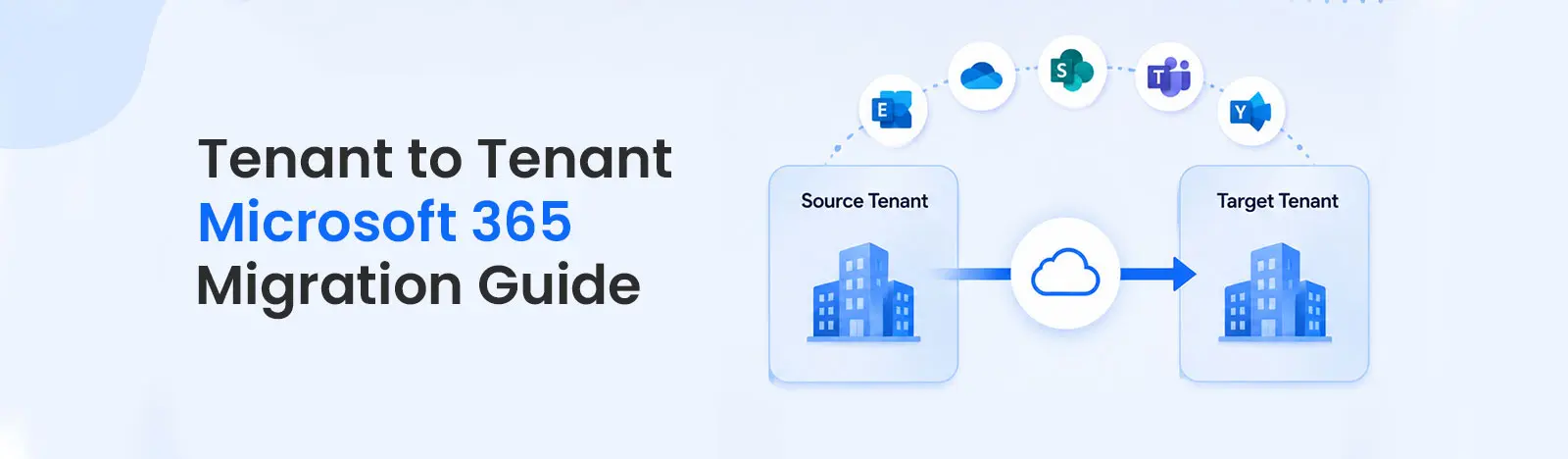
A tenant-to-tenant (T2T) Microsoft 365 migration moves users and their data from one Microsoft 365 tenant to another, usually driven by a merger, acquisition, divestiture, or rebrand. It is one of the hardest projects in the Microsoft ecosystem for three reasons: it spans multiple workloads (Exchange Online, OneDrive, SharePoint, and Teams) plus identity; each workload has different tooling and limits; and no single native tool moves all of them. Success comes from sequencing the workloads correctly, meeting Microsoft’s native prerequisites exactly, and knowing where a third-party platform is required.
A Microsoft 365 tenant is an organization’s dedicated instance of the service, so a T2T migration moves users, data, and identity from one instance to another. It most often arises from a merger (two tenants become one), a divestiture (a business unit leaves for its own tenant), or a consolidation of overlapping tenants.
Microsoft provides native cross-tenant capability for mailboxes and OneDrive, and, in preview, for SharePoint sites, all under the Cross-Tenant User Data Migration add-on. This guide walks the full native prerequisite chain, the cmdlets, and the sequence, then sets out where Teams, and some data no move carries, still calls for a third-party tool or manual work.
Native cross-tenant mailbox migration: the prerequisite chain
Cross-tenant mailbox migration uses the Mailbox Replication Service and is configured through Exchange Online PowerShell. The prerequisites are exacting, and missing one is the usual reason a first batch fails :
Organization relationships in both tenants. Source and target must each establish a cross-tenant relationship and trust before any mailbox moves.
Mail-enabled users in the target. Each migrating user needs a corresponding mail-enabled user (MEU) created in the target tenant before migration, with matching identity attributes .
An Azure (Microsoft Entra) app registration. Register a migration application in the target tenant as a multi-tenant account, with the redirect URI set to https://office.com, and grant it the Mailbox .Migration application permission under Office 365 Exchange Online.
A migration endpoint in the target. Create the endpoint with the application ID and secret so the target can pull mailboxes from the source [1].
The Cross-Tenant User Data Migration add-on license. This must be purchased and assigned; migrations fail without it [2].
With the chain in place, the mailbox move itself is a familiar batch pattern. Verify configuration, then pre-sync and complete at cutover:
Like mailboxes, OneDrive cross-tenant moves are covered by the Cross-Tenant User Data Migration add-on, a one-time per-user license available since November 2022 and assignable on either the source or the target user [3].
SharePoint sites and Teams: native preview, and where a tool is still needed
This is the decision point most plans get wrong, and it changed recently. SharePoint sites now have a native cross-tenant site migration, in preview: after establishing trust and uploading identity mapping, a source admin moves a site with Start-SPO Cross Tenant Site Content Move and tracks it with Get-SPO Cross Tenant Site Content Move State, under the same add-on license. Being in preview it carries limitations, so many teams still run SharePoint at scale through a third-party platform.
Teams is the real gap, and the limitation to lead with is chat fidelity. Native migration does not carry Teams 1:1 or group chat history, and meetings and their recordings do not move, meeting links break and must be recreated. Teams, with its private and shared channels, is moved with a third-party platform such as ShareGate, AvePoint, BitTitan, or Cloudiway, and even then chat migrates with fidelity limits. The rule of thumb: a mailbox, OneDrive, and SharePoint-heavy move can be largely native; a Teams-heavy move needs a tool and a communications plan.
Exchange, OneDrive, and SharePoint sites (preview); Teams not native
Exchange, OneDrive, SharePoint, and Teams in one workflow
Orchestration
Exchange Online and SharePoint PowerShell, manual sequencing
Central console, scheduling, and reporting
Coexistence
Limited
Often supports staged coexistence during transition
Cost
Per-user add-on license
Platform licensing plus per-user fees
Best for
Mailbox and OneDrive-centric moves
Complex, multi-workload M&A migrations
What moves, what needs a tool, and what does not migrate
The most-asked question in a T2T project is not how, but what actually survives the move. Plan against this before you commit a date.
Workload or data
How it migrates
Watch-out
Exchange mailboxes
Native cross-tenant (add-on)
Item counts and folders should reconcile against the source
OneDrive
Native cross-tenant (add-on)
Sharing links may break and need re-issuing
SharePoint sites
Native cross-tenant, preview (add-on), or third-party
Preview limitations; validate content and permissions
Teams files
Move with the underlying SharePoint site
Tabs and connectors often need reconfiguration
Teams chat (1:1 and group)
Not native; third-party with fidelity limits
History is frequently the biggest accepted loss
Teams meetings and recordings
Not migrated
Meeting links break; recreate recurring meetings
Private and shared channels
Limited or skipped
Confirm scope with your tool early
Sharing links (internal and external)
Not carried reliably
External shares must be re-established manually
Power Platform (Apps, Automate, Dataverse)
Not moved by these tools
Rebuild or use Power Platform-specific tooling
Passwords and MFA
Not migrated
Users get new credentials and re-register MFA
The step-by-step migration process
Discover and inventory both tenants. Catalog users, mailboxes, OneDrive, SharePoint sites, Teams, and identities on source and target, and do not overlook the workloads teams forget: Microsoft 365 Groups, shared mailboxes, distribution lists, guest accounts, and service accounts.
Plan identity and domains. Decide how identities map and when the vanity domain moves. A domain can be verified in only one tenant at a time, so the domain cutover is a hard sequencing constraint.
Establish trust and relationships. Configure the organization relationships in both tenants and, for OneDrive, the cross-tenant relationship .
Pre-stage target identities. Create mail-enabled users in the target for every migrating mailbox, with matching attributes.
Register the app and endpoint. Create the multi-tenant Azure app with the Mailbox. Migration permission and redirect to https://office.com, then create the migration endpoint with its ID and secret.
License and pilot. Purchase and assign the Cross-Tenant User Data Migration add-on, then run a small representative pilot across every workload and verify with Test-MigrationServerAvailability.
Migrate mailboxes. Use New-Migration Batch to pre-sync, then complete in a planned cutover.
Migrate OneDrive. Move content with Start-SPO Cross TenantUser Content Move
Migrate SharePoint sites and Teams. Move SharePoint sites with the native cross-tenant site migration (preview) or a third-party tool, and move Teams with a third-party tool, sequenced with the identity cutover.
Validate every workload before anything irreversible. Reconcile each workload against the source, mailbox item and folder counts, OneDrive and SharePoint file counts and permissions, Teams membership and files, and confirm mail flow. Record business sign-off. Validation gates the next step.
Cut over and decommission. Move the domain, redirect mail flow, and only after validation and sign-off, decommission the source tenant. Decommissioning before validation is the classic irreversible mistake.
What users experience at cutover
Plan the human side, not just the data. In the target tenant users sign in with new credentials and re-register multi-factor authentication, Outlook rebuilds its profile and re-downloads mail, the OneDrive client is reconfigured to the new account, and any external sharing links they relied on must be re-issued. A short communications plan and a staffed hypercare window in the days after each wave prevent most helpdesk spikes.
Prerequisites checklist
Organization relationships and trust configured in both tenants
Mail-enabled users pre-created in the target for every mailbox
Multi-tenant Azure app registered with Mailbox. Migration permission and https://office.com redirect
Migration endpoint created with app ID and secret
Cross-Tenant User Data Migration add-on purchased and assigned
Third-party platform selected for Teams, and for SharePoint if not using the native preview
Domain cutover sequenced against identity migration
Common pitfalls
Skipping the add-on license. Migrations fail outright without it; buy and assign it before the pilot.
Assuming native covers everything. SharePoint sites have a native cross-tenant move in preview ; Teams still needs a third-party tool. Scope by workload, not by assumption.
Mismanaging the domain. A vanity domain lives in one tenant at a time, so an out-of-sequence domain move breaks mail flow.
Weak identity matching. Mail-enabled users with mismatched attributes cause mailbox moves to fail or mis-route.
Key takeaways
No single native tool moves everything; sequence workloads and plan identity first.
Native mailbox and OneDrive moves require org relationships, target MEUs, a multi-tenant Azure app with Mailbox. Migration, a migration endpoint, and the add-on license .
SharePoint sites have a native cross-tenant move in preview; Teams still needs a third-party platform.
Pilot across every workload, sequence the domain cutover, and validate before decommissioning.
No, but more than before. Native cross-tenant now covers Exchange mailboxes, OneDrive, and SharePoint sites (in preview). Teams still needs a third-party tool, and some data, chat history, meetings, and sharing links, is not carried by any move.
Organization relationships in both tenants, mail-enabled users in the target, a multi-tenant Azure app with the Mailbox. Migration permission and an https://office.com redirect, a migration endpoint with the app ID and secret, and the Cross-Tenant User Data Migration add-on.
A one-time per-user license, available since November 2022 and assignable on the source or target user, that covers native cross-tenant mailbox and OneDrive migration. Migrations fail without it.
Two different licenses are in play. Every user needs a standard Microsoft 365 license assigned in the target tenant, source licenses do not transfer, and native cross-tenant mailbox, OneDrive, and SharePoint moves additionally require the one-time per-user Cross-Tenant User Data Migration add-on. Budget for both.
No. Native migration does not carry Teams 1:1 or group chat history, and meetings and recordings do not move, meeting links break and must be recreated. A third-party tool can move some chat with fidelity limits. For most projects chat history is the biggest accepted loss, so communicate it early.
Test-Migration Server Availability and New-Migration Batch for mailboxes, Set-SPOCrossm Tenant Relationship with Start-SPO Cross Tenant User Content Move for OneDrive, and Start-SPO Cross Tenant Site Content Move for SharePoint sites in the preview site migration
A vanity domain can be verified in only one tenant at a time, so the domain cutover has to be sequenced carefully against identity migration and mail flow.
It depends on user count, data volume, and workload mix. Most enterprise M&A migrations run in phased waves over several weeks, with pre-staging so each cutover is short.
Reconcile each workload against the source before decommissioning: mailbox item and folder counts, OneDrive and SharePoint file counts and permissions, Teams membership and files, and confirmed mail flow, then record business sign-off. Decommissioning the source before validation is the classic irreversible mistake.
Bhupendra is a Digital Transformation Expert and Microsoft 365 Consultant who helps organizations modernize the way they work using the Microsoft 365 suite of services. As a Microsoft Certified Teams Administrator Associate, with credentials in Microsoft 365 Fundamentals and the Microsoft Service Adoption Specialist assessment, he combines technical expertise with adoption strategies to drive meaningful business change.