A practical, vendor-neutral guide for CIOs, IT directors, and digital workplace leaders evaluating SharePoint consulting partners in Australia — including a comparison...
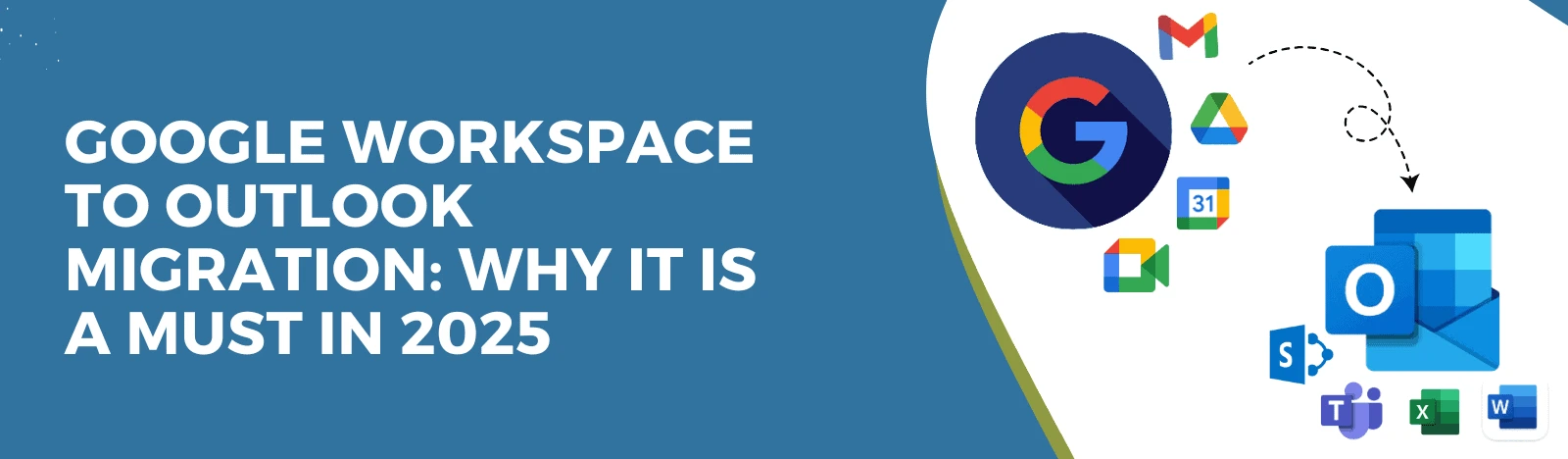
Organizations migrating from Google Workspace to Microsoft 365 often choose Outlook to centralize business communication, improve collaboration, strengthen security, and simplify IT administration. A successful migration minimizes disruption while ensuring employees can continue working seamlessly throughout the transition.
Understanding Google Workspace to Outlook Migration
As organizations adopt Microsoft 365 to support collaboration, security, and productivity, migrating from Google Workspace to Outlook has become a common step in digital workplace transformation. Businesses often make this transition to centralize email communication, improve collaboration through Microsoft Teams, strengthen security, and simplify IT management.
Unlike simply exporting emails, a successful migration involves transferring mailboxes, contacts, calendars, and other business data while minimizing disruption to users and maintaining business continuity.
What is Google Workspace to Outlook Migration?
Google Workspace to Outlook migration is the process of transferring emails, contacts, calendars, attachments, and mailbox data from Google Workspace (formerly G Suite) to Microsoft Outlook and Microsoft 365. The migration enables organizations to move from Gmail to Exchange Online while taking advantage of Microsoft’s collaboration, security, and productivity ecosystem.
A well-planned migration preserves important business information, minimizes downtime, and provides employees with a seamless transition to Microsoft Outlook, Microsoft Teams, OneDrive, and other Microsoft 365 applications.
Google Workspace to Outlook Migration at a Glance
Before starting a migration project, organizations should understand the overall process, the data being transferred, and the available migration approaches. The following table provides a quick overview.
Feature
Details
Source Platform
Google Workspace
Destination
Microsoft Outlook / Exchange Online
Data Migrated
Emails, Contacts, Calendars, Attachments
Migration Difficulty
Medium
Downtime
Minimal with proper planning
Best For
SMBs & Enterprises
Typical Timeline
Hours to Several Weeks
Enterprise Recommendation
Professional Migration
Quick Insight: Organizations migrating to Microsoft 365 often combine Outlook with Microsoft Teams, OneDrive, and SharePoint to create a unified communication and collaboration platfor.
Why Organizations Migrate from Google Workspace to Outlook
Businesses migrate to Microsoft Outlook for more than email. Most organizations are looking to consolidate collaboration, improve security, simplify administration, and leverage the broader Microsoft 365 ecosystem.
Some of the most common reasons include:
Standardizing communication within Microsoft 365
Integrating email with Microsoft Teams
Improving document collaboration using OneDrive and SharePoint
Strengthening compliance and security
Simplifying user management
Automating business processes using Power Automate
Enabling Microsoft Copilot across Microsoft 365
Reducing reliance on multiple collaboration platforms
Organizations already investing in Microsoft technologies often achieve greater operational efficiency by moving from Google Workspace to Microsoft Outlook and Exchange Online.
Google Workspace vs Outlook
Although both Google Workspace and Microsoft Outlook provide business email and collaboration capabilities, they differ in how they integrate with productivity applications, document management, and enterprise security.
Feature
Google Workspace
Microsoft Outlook / Microsoft 365
Email
Gmail
Outlook
Calendar
Google Calendar
Outlook Calendar
Meetings
Google Meet
Microsoft Teams
Cloud Storage
Google Drive
OneDrive
Document Management
Google Drive
SharePoint
AI Assistant
Google Gemini
Microsoft Copilot
Productivity Apps
Docs, Sheets, Slides
Word, Excel, PowerPoint
Workflow Automation
Apps Script
Power Automate
Identity Management
Google Admin
Microsoft Entra ID
Organizations already using Microsoft 365 generally benefit from Outlook because it integrates seamlessly with Microsoft Teams, SharePoint, OneDrive, Power Platform, and Microsoft Copilot.
Benefits of Google Workspace to Outlook Migration
Migrating to Outlook provides more than a new email platform. It enables organizations to modernize communication, improve collaboration, and strengthen security while creating a connected Microsoft 365 environment.
Benefits include:
Unified Microsoft 365 Experience
Employees can access Outlook, Teams, OneDrive, SharePoint, and Microsoft Office from one integrated platform.
Enhanced Security
Exchange Online includes enterprise-grade security, encryption, threat protection, and compliance capabilities.
Better Collaboration
Employees collaborate through Microsoft Teams while sharing documents stored in OneDrive and SharePoint.
AI-Powered Productivity
Microsoft Copilot helps summarize emails, draft responses, retrieve organizational knowledge, and improve workplace productivity.
Simplified Administration
IT administrators can manage users, policies, permissions, and compliance from the Microsoft 365 Admin Center.
What Gets Migrated?
Understanding what is migrated helps organizations plan effectively and avoid unexpected issues after the migration.
Item
Supported
Emails
✓
Attachments
✓
Contacts
✓
Calendar
✓
Distribution Lists
Partial
Labels
Converted to Outlook Folders
Rules
Tool Dependent
Shared Mailboxes
Tool Dependent
Signatures
Manual Recreation
Delegates
Manual Validation
How Long Does Google Workspace to Outlook Migration Take?
The time required depends on the number of users, mailbox sizes, network bandwidth, and migration method.
Organization Size
Estimated Timeline
1–25 Users
1–2 Days
25–100 Users
2–5 Days
100–500 Users
1–2 Weeks
500+ Users
Several Weeks
Factors affecting the migration timeline include mailbox size, internet speed, third-party integrations, shared mailboxes, calendar complexity, and user validation.
Google Workspace to Outlook Migration Process
A typical migration follows these stages:
Assess the existing Google Workspace environment.
Prepare Microsoft 365 and Exchange Online.
Map users and permissions.
Perform a pilot migration.
Migrate emails, contacts, and calendars.
Validate migrated data.
Update DNS and MX records.
Train end users.
Monitor and optimize after migration.
Common Google Workspace to Outlook Migration Challenges
Although Microsoft provides several migration options, organizations often encounter challenges that require careful planning and testing.
Common migration challenges include:
Gmail labels converting into Outlook folders
User account mapping
Shared mailbox migration
Calendar synchronization
Large mailbox sizes
Authentication configuration
MX record changes
Third-party integrations
User adoption
Post-migration validation
A structured migration strategy helps organizations minimize these risks while ensuring business continuity throughout the migration process.
How Long Does Google Workspace to Outlook Migration Take?
The time required depends on the number of users, mailbox sizes, network bandwidth, and migration method.
Organization Size
Estimated Timeline
1–25 Users
1–2 Days
25–100 Users
2–5 Days
100–500 Users
1–2 Weeks
500+ Users
Several Weeks
Factors affecting the migration timeline include mailbox size, internet speed, third-party integrations, shared mailboxes, calendar complexity, and user validation.
When Should You Migrate from Google Workspace to Outlook?
Organizations should consider migrating when:
They are adopting Microsoft 365 across the business.
Employees already rely on Microsoft Teams for collaboration.
They want to consolidate communication, file storage, and productivity tools into one ecosystem.
They need stronger compliance, security, and governance capabilities.
They want to use Microsoft Copilot and other AI-powered productivity features.
They are replacing Google Workspace as part of a broader digital workplace modernization initiative.
Migrating at the right time helps organizations reduce IT complexity while providing employees with a consistent collaboration experience across Microsoft 365.
(You’re here because…)
A single employee forwards a client email to their personal Gmail (innocent mistake). The email contains an unencrypted contract. A hacker breaches their personal account (43% of breaches target small-business employees, Verizon). The contract leaks. The client sues for negligence. Your Google Workspace logs show the forward, but legal blames your “unsecure” tools. The settlement costs $850k. All because you didn’t migrate to Outlook’s compliance fortress.
Your Pain, Addressed:
“I’m drowning in app overload”:
Your team toggles between Gmail (emails), Google Calendar (meetings), and Teams (chat). A sales rep misses a meeting invite buried in Slack. A deal dies. Outlook unifies this chaos (emails + calendars + Teams in one tab).
“I’m paying for two tools but using half of both”:
Google Workspace for emails ($6/user), Microsoft 365 for Teams ($12.50/user). You’re bleeding $18.50/user monthly for fragmented tools. Migrating to Outlook consolidates costs (just $12.50/user).
“I’m one misclick away from disaster”:
Google’s “Share” button is too easy. An intern shares a financial report with “Anyone with the link.” Outlook’s default sharing is internal-only (external sharing requires admin approval).
You’re not just migrating emails—you’re plugging leaks in a sinking ship. But before you bail, let’s address the questions you’re too overwhelmed to ask.
Google Workspace to Outlook Migration Best Practices
Organizations can improve migration success by following a structured approach throughout the project.
Best practices include:
Audit existing Google Workspace accounts before migration.
Remove inactive users and unnecessary mailboxes.
Perform a pilot migration with a small group of users.
Map users and permissions carefully.
Validate migrated emails, contacts, and calendars.
Schedule migration outside business hours whenever possible.
Update DNS and MX records during the final cutover.
Train employees on Microsoft Outlook and Teams.
Monitor migration reports and resolve errors promptly.
Provide post-migration support to encourage user adoption.
Why Choose Beyond Intranet for Google Workspace to Outlook Migration?
Beyond Intranet helps organizations migrate from Google Workspace to Microsoft Outlook with minimal disruption and maximum business continuity. Our migration experts assess your existing environment, plan the migration strategy, transfer mailbox data securely, validate migrated content, and support employees throughout the transition.
Our services include:
Migration assessment and planning
Mailbox and calendar migration
Contact migration
User mapping
Exchange Online configuration
Microsoft Teams integration
Microsoft 365 deployment
Post-migration validation
End-user training
Ongoing support
What You’re Asking (But Won’t Say Out Loud)
Q1: How do I transfer Google Workspace to Outlook without losing my mind?
A: Use Microsoft’s Google Workspace Migration Tool (free), but…
1: It converts Google labels to folders—except nested labels (e.g., “/Clients/Active”) become “Clients-Active” (a mess for 1,000+ emails).
2: Emails >25MB (common in construction blueprints) fail. You’ll manually re-upload them via Outlook’s desktop app (right-click → “Repair”).
Pro Tip: Use GYB (free) to backup Gmail to PST first (local backup = sleep better).
Manual tools fix emails but break sanity. What about the ‘official’ migrator?
Q2: What does Google Workspace Migration for Microsoft Outlook actually do?
A: It’s a one-way bridge with potholes:
Moves: Emails, contacts, calendars (but not Google Tasks or Keep notes).
Fails Silently: 1 in 5 migrations corrupt PST files (unreadable emails) if interrupted (Microsoft Support).
Workaround: Migrate in batches of 50 users (not 500) and checksum PSTs with QuickHash (free).
So migration tools are landmines. Can I just DIY this?
Q3: Can I migrate from Gmail to Outlook with ease?
A: Yes, if you:
Export Gmail to PST (Google Takeout → “Export as .mbox” → Convert to PST with mbox2pst).
Recreate Filters (Outlook’s rules cap at 256KB—trim bloated Gmail filters).
Test with Power Users: Have your busiest employee (e.g., CEO’s assistant) validate calendar alerts before full migration.
Skip testing → CEO misses investor call → Stock dips 3% → Board questions your competence.
Q4: Should I just move everything to Office 365?
A: Do it if you want:
Teams-Outlook Marriage: Forward an email to Teams (right-click → “Share to Teams”) → Discuss in a channel without switching apps.
Compliance Superpowers: Microsoft Purview auto-classifies emails as “Confidential” (vs. Google’s manual labels).
But Beware: Office 365 has 300+ migration settings (e.g., “Preserve ‘Sent on Behalf Of’ headers”). Miss one, and your CFO’s emails look like they’re from “tmp_user342@company.com.”
Migration isn’t just tech—it’s psychology. Fear of failure paralyzes, but stagnation is riskier.
The Unspoken Risks of Not Migrating From Google Workspace to Outlook
Risk 1: Productivity Freefall
Employees toggle between Gmail (emails), Google Calendar (meetings), and Slack (updates). A sales rep misses a meeting invite buried in notifications. Deal lost. Outlook merges these into one tab (emails + calendar + Teams chats).
Risk 2: Compliance Time Bombs
Google Vault requires manual searches (e.g., “Find all emails with ‘SSN’ sent externally”). Microsoft Purview auto-flags sensitive data (e.g., credit card numbers) and blocks sends.
Stat: 68% of compliance fines stem from human error (Gartner).
Risk 3: You Become the Bottleneck
“Why can’t I access this shared mailbox?” tickets flood your inbox. Google’s delegate permissions are clunky; Outlook’s shared mailboxes take 2 clicks.
Example: A marketing team waited 3 days for access to “campaigns@company.com” during a product launch.
Transition: “Staying put feels safe—until it isn’t. But what about the horror stories?”
But I’ve Heard Migration Horror Stories! – Let’s Demystify
(Myths vs. Reality)
Myth 1: “It’ll take months and cost a fortune.”
Reality:
300-seat migrations take 3-5 days with pre-mapped labels → folders.
Cost: $0 (Microsoft’s free tool) to $8/user (enterprise tools like BitTitan).
Myth 2: “Migration takes months.”
Reality: Most organizations complete migrations in phases, reducing downtime and allowing employees to continue working throughout the process.
Myth 3: “Outlook is difficult to learn.”
Reality: Outlook provides a familiar experience for Microsoft 365 users and integrates seamlessly with Teams, OneDrive, and SharePoint.
Skip delta sync → Migrate 10,000 emails → 500 new emails arrive post-migration → Sales team misses a client’s urgent reply → Account lost.
Myth 4: “Email data is always lost.”
Reality: Modern migration tools and pilot testing help preserve business-critical emails, calendars, and contacts while reducing migration risks.
Myths debunked. Now, how do you start without becoming a cautionary tale?
Your Next Move
Step 1: Run a Pilot Migration
Migrate 5 users (include a exec, a manager, and a power user).
Test:
Shared calendars (do “All Company Holidays” events sync?).
Email rules (does “Move ‘Invoice’ emails to /Accounting” work?).
Step 2: Audit Third-Party Apps
Google Workspace add-ons (e.g., DocuSign, Zoom Scheduler) need reconfiguration in Outlook.
“How to find old emails in Outlook” (spoiler: Use the search bar).
“Where’s the ‘Undo Send’ button?” (Settings → Mail → Delay send 1 minute).
Skip training → Employees panic → IT gets 200+ “Where’s my email?!” tickets → You work weekends.
Even with a plan, sometimes you need a lifeline.
What If I Still Need Help In Google Workspace to Outlook Migration?
When to Call Beyond Intranet:
Scenario 1: Your PST files are corrupted (we recover 99% with forensic tools).
Scenario 2: Migrating 1,000+ mailboxes with zero downtime (we’ve done 500+ migrations).
Scenario 3: Your CISO demands GDPR audit trails (we auto-tag emails as “Confidential”).
What We Don’t Do:
Sell you Outlook (you own it).
Waste time with “synergy” buzzwords (we speak human).
Before you go, let’s ensure you’re bulletproof.
Why Microsoft 365 Makes Outlook More Powerful
One of the biggest advantages of migrating from Google Workspace to Outlook is that Outlook becomes part of the broader Microsoft 365 ecosystem rather than functioning as a standalone email application.
By combining Outlook with Microsoft Teams, SharePoint, OneDrive, Power Platform, and Microsoft Copilot, organizations create a connected digital workplace where employees can communicate, collaborate, manage documents, automate workflows, and securely access business information from a single platform.
This unified approach improves productivity, reduces application switching, strengthens governance, and enables organizations to maximize their Microsoft 365 investment.
Google Workspace to Outlook migration is the process of transferring emails, contacts, calendars, attachments, and mailbox data from Google Workspace (formerly G Suite) to Microsoft Outlook and Exchange Online. Organizations typically migrate as part of a Microsoft 365 adoption strategy to improve collaboration, strengthen security, and centralize business communication.
Organizations migrate from Google Workspace to Outlook to take advantage of Microsoft 365 integration, Microsoft Teams collaboration, enterprise-grade security, Exchange Online, and AI-powered productivity with Microsoft Copilot. The migration also helps simplify IT management and create a unified digital workplace.
Most migration solutions can transfer emails, folders, contacts, calendars, attachments, and mailbox data. Some advanced tools can also migrate permissions and shared mailboxes, while items such as email signatures or custom Gmail settings may require manual configuration after migration.
No. With proper planning and the right migration approach, organizations can migrate emails without losing business-critical data. Performing a pilot migration, validating migrated mailboxes, and maintaining backups help ensure a smooth and secure migration process.
The migration timeline depends on the number of users, mailbox sizes, network bandwidth, and migration method. Small organizations may complete migration within a few days, while enterprise migrations involving hundreds of users can take several weeks using a phased migration strategy.
The best migration method depends on your organization's size and requirements. Small businesses may use Microsoft's built-in migration tools, while larger organizations often choose professional migration solutions to preserve mailbox data, minimize downtime, and simplify the migration process.
Yes. Most migration tools support the migration of Google Calendar events and Google Contacts to Outlook. Organizations should validate recurring meetings, shared calendars, and contact groups after migration to ensure all information has been transferred correctly.
Common challenges include user account mapping, mailbox size limitations, calendar synchronization, DNS and MX record updates, shared mailbox configuration, third-party integrations, and user adoption. Proper planning and testing help reduce these risks.
Migration costs depend on the number of users, mailbox sizes, migration tools, project complexity, and support requirements. Organizations should also consider planning, testing, user training, and post-migration support when estimating the total cost of migration.
Yes. Most organizations perform phased migrations that allow employees to continue working while mailbox data is being transferred. Careful planning, pilot migrations, and scheduled cutover activities help minimize business disruption.
Once organizations migrate to Microsoft 365, Microsoft Copilot can help employees summarize emails, draft responses, search organizational knowledge, prepare meeting recaps, and improve productivity by using information stored across Outlook, Teams, OneDrive, and SharePoint.
Beyond Intranet provides end-to-end Google Workspace to Outlook migration services, including migration assessment, planning, mailbox migration, calendar and contact migration, Microsoft 365 configuration, user training, post-migration validation, and ongoing support. Our experts help organizations migrate securely while minimizing downtime and ensuring business continuity.