A practical, vendor-neutral guide for CIOs, IT directors, and digital workplace leaders evaluating SharePoint consulting partners in Australia — including a comparison...
Quick Answer: How to Build a SharePoint Employee Directory from a Template
To build a SharePoint employee directory from a template, create a custom SharePoint List with profile fields (Name, Title, Department, Manager, Office, Email, Photo), connect it to Microsoft Entra ID for live identity sync, then surface the List on a Modern Page with the People web part or a custom SPFx component. Setup time: 4 to 8 hours for a basic directory; one day for a full-featured rollout.
Why Teams Want a SharePoint Employee Directory Template
Search for “sharepoint employee directory template” and you’ll find marketing pages disguised as templates, walkthrough articles with no actual download, and PnP samples from 2021 that don’t match modern SharePoint.
This post is different. Below is a working SharePoint List schema you can use as your starting template, a 6-step deployment guide that covers Entra ID sync and permissions, and an honest breakdown of where the DIY approach hits a wall. If you’re a SharePoint admin looking to ship a sharepoint employee directory this sprint, start with the schema in Section 3.
Anatomy of a Working SharePoint Employee Directory Template
A functional sharepoint people directory needs four components. Miss one and the directory breaks or becomes a spreadsheet nobody updates.
The data layer is a SharePoint List with the right column schema. This is the “template” part. The identity sync is a connection to Microsoft Entra ID so the List populates automatically rather than by hand. The presentation layer is a Modern Page with web parts that surface the List as a searchable interface. And the permission model inherits from M365 rather than living as custom permissions on the List itself.
Most “templates” on the web only cover the first component. That’s why they fail in production.
The SharePoint List Schema: Your Starting Template
This is the sharepoint employee list template. If there’s no downloadable .pnp file, this schema IS the template. Create a blank SharePoint List named “Employee Directory” and add these columns:
COLUMN NAME
TYPE
NOTES
Title
Single line of text
Employee full name. This is the default List column.
JobTitle
Single line of text
Pulled from Entra ID userPrincipalName attributes
Department
Choice field
Pre-populate choices from your Entra group names
Manager
Person/Group
Displays manager name with profile card hover
Office
Single line of text
City, building code, or floor depending on your structure
WorkEmail
Single line of text
Primary business email from Entra
WorkPhone
Single line of text
Direct line or extension
Photo
Image column
Manual upload. Power Automate cannot reliably pull photos at scale.
Skills
Multiple lines of text
Optional. Useful for expertise search.
Languages
Choice (multi-select)
Optional. Valuable for global organisations.
For the PnP approach: Microsoft’s GitHub samples include .xml templates that create this schema automatically via the PnP PowerShell module.
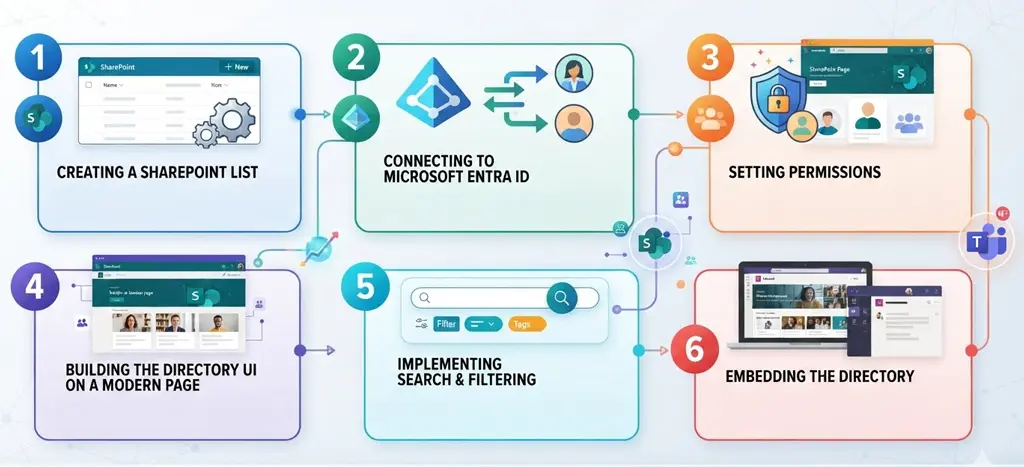
Deploying the Template: 6 Steps
Step 1: Create the SharePoint List
Site Contents > New > List > Blank list. Name it “Employee Directory.” Apply the column schema from the table above. If you have a PnP .xml template, use Apply template instead of building columns by hand. Takes about 20 minutes either way.
Step 2: Connect to Microsoft Entra ID
This step separates a real sharepoint employee directory from a manually updated spreadsheet. Build a scheduled Power Automate cloud flow with a daily trigger. Add the “Get users (V2)” action from the Microsoft 365 Users connector, then “Apply to each” user and “Update item” in the SharePoint List.
Important: the M365 Users connector is a Premium connector. That means a Power Automate Premium licence ($15/user/month or $100/flow/month). For directories under 100 users, the standard tier may work for occasional sync. Past 500 users, you’ll need either Premium or an Azure Function running on a schedule.
Step 3: Set Permissions
Inherit from the parent site. Avoid unique List permissions unless legally required. For contractor visibility restrictions, use column-level formatting and audience targeting. Fewer permission sets means fewer support tickets.
Step 4: Build the Directory UI on a Modern Page
Create a Modern Page. Add the People web part for a quick start, or a List web part with a custom view that hides admin columns. For real search, you need either the Search results web part with a custom display template or a custom SPFx web part. This is where most teams realise they need developer help.
Step 5: Add Search and Filters
Native List filters work for organisations under 500 people. Beyond that, you need Search-based filtering. SPFx custom web parts can deliver search-as-you-type, but building one to production grade takes 80 to 200 developer hours. That’s where the build-versus-buy decision gets real.
Step 6: Embed in Your Intranet and Teams
Add the page to your intranet navigation. Add as a Teams tab in the company-wide Team. Surface in Viva Connections for mobile. Single data source, multiple touchpoints.
Skip the Build: Install a SharePoint Employee Directory in 30 Minutes
Beyond Intranet’s directory app handles Entra sync, search, photos, and mobile out of the box.
Power Automate sync hits flow-action limits at 10,000+ users. Past that threshold, you need an Azure Function, which means developer time and Azure hosting costs.
Photo handling is the most common frustration. Power Automate cannot reliably pull user profile photos at scale from Entra ID. You end up maintaining a manual photo library or building a custom Azure Function against Microsoft Graph.
Mobile UX out of the box is poor. The List web part does not render cleanly on phones. You need either Viva Connections or a custom SPFx web part with mobile-first CSS.
And modern SharePoint UI changes break custom display templates on a quarterly cycle. Budget 4 to 8 hours of maintenance per year at minimum. Teams without a dedicated SharePoint developer tend to absorb that cost for a year or two before switching to a pre-built product.
The Pre-Built Option: Beyond Intranet SharePoint Employee Directory
If you don’t want to maintain the template above forever, the SharePoint employee directory app from Beyond Intranet is the fastest path to production. Live Entra ID sync without Power Automate. Photos from M365 profiles automatically. Search-as-you-type on desktop and mobile. M365 permissions inherited. Embeddable in SharePoint, Teams, and Viva.
The template approach works for teams with SharePoint developer capacity. This product works for teams without it. Install in 30 minutes. Configure in 1 to 2 hours. No SPFx development.
And because the directory connects to the same Entra ID source, it pairs naturally with aSharePoint-native org chart for visualising reporting lines alongside the people finder.
Template vs Pre-Built: When Each One Wins
DIY TEMPLATE
BEYOND INTRANET APP
Setup time
4 to 8 hours + dev support
30 minutes to install, 1 to 2 hours to configure
Identity sync
Power Automate flow (Premium licence required)
Native Entra ID integration. No Power Automate needed.
Photo handling
Manual library or custom Azure Function
M365 user profile photos pulled automatically
Mobile UX
Requires SPFx or Viva Connections
Native responsive UI out of the box
Search
SPFx custom web part (80 to 200 dev hours)
Search-as-you-type included
Maintenance
4 to 8 hours/year + SPFx upkeep
Vendor-managed updates
Best for
Teams with SharePoint dev capacity
Teams that need to ship this sprint
Bonus: Handling Re-Orgs and Acquisitions
Department restructures and M&A employee waves are where the DIY template gets painful. The Power Automate flow needs to re-sync within hours of an Entra ID change. If it runs daily, your directory shows yesterday’s org structure until the next trigger. Employees search for their new manager and find the old one.
The pre-built approach propagates Entra ID changes in real time. The same principle applies to onboarding waves after acquisitions. If new hire onboarding is part of the same project, take a look at employee onboarding software for SharePoint.
Not directly. SharePoint includes a Contacts List template, but that’s an address book, not a full directory with photos, filters, and Entra sync. To build a real sharepoint employee directory, create a custom List with profile columns and connect it to Entra ID. Pre-built apps deliver the full setup in under 30 minutes.
Yes. The PnP provisioning framework lets you apply a .xml template that creates the List schema, columns, and views automatically. Microsoft’s PnP samples on GitHub include directory-related templates. For production-ready without GitHub setup, install a sharepoint directory app from AppSource or a vendor like Beyond Intranet.
Depends on what you’re building. A basic directory using Lists and Power Automate takes 4 to 8 hours of setup, then another 8 to 16 for permissions and UI testing. If you need production-grade search with SPFx, that’s 80 to 200 developer hours. A pre-built app installs in 30 minutes and configures in a couple of hours.
Yes for production use. The M365 Users connector is Premium, requiring a Power Automate Premium licence. For directories under 100 users, the standard tier may work. Past 500 users, you need Premium or an Azure Function.
Not well out of the box. The List web part renders awkwardly on mobile. You can fix it with a custom SPFx web part built for smaller screens, or route users through Viva Connections which is already mobile-optimised. The third option is a pre-built directory app where the vendor has already handled responsive design.
Microsoft 365 People shows Entra ID contacts in a basic interface. You cannot customise it, embed it, or add department filters. A SharePoint employee directory gives you control over the experience. Your branding. Custom fields that M365 People doesn’t support. The ability to embed the directory inside your intranet or as a Teams tab. And search-as-you-type filtering by department, location, or skills. Both read from Entra ID. The difference is what you can do with the data.