A practical, vendor-neutral guide for CIOs, IT directors, and digital workplace leaders evaluating SharePoint consulting partners in Australia — including a comparison...
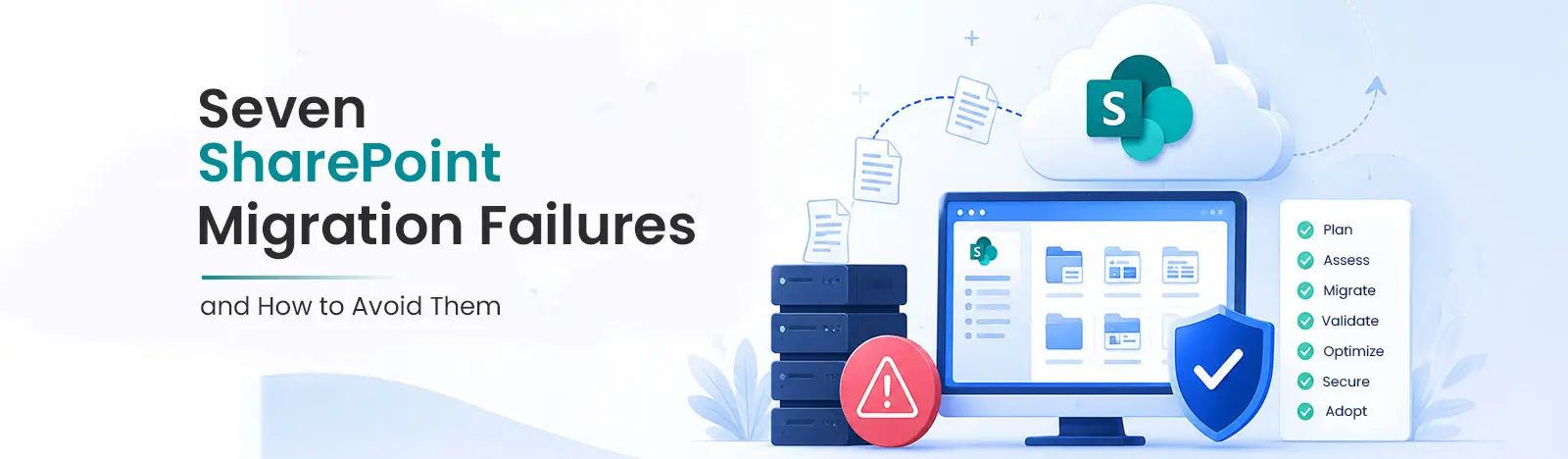
A SharePoint migration failure is any migration that finishes late, over budget, or with lost data, broken permissions, or low adoption. The uncomfortable truth is that almost none of these are tool failures. SPMT and Migration Manager do what Microsoft says they do. The failures come from skipping the planning and remediation work around them, the five-phase framework Microsoft publishes: assess, remediate, prepare, migrate, and onboard. Below are the seven we see most, each with its real cause and the specific control that prevents it.
The seven SharePoint migration failures
1. No discovery or inventory
Without a scan of total volume, file count, folder depth, unique-permission count, and largest files, every estimate is a guess and every blocker is a surprise mid-migration. This is the assess phase, and skipping it is the single most common root cause of overruns. Warning sign: no one on the project can state the share’s total size or file count from memory. The fix is decisive: run Migration Manager’s scanning or a scripted directory report before you commit to a timeline (an IT task), and let the numbers, not optimism, set the schedule.
2. Migrating ROT instead of selecting content
Redundant, obsolete, and trivial (ROT) data is what a lift-and-shift carries across intact, and it is expensive later. A large share of aged content is typically redundant, obsolete, or trivial, so moving it inflates cost, time, and storage for no benefit. Selection is the fix: with the business, exclude by clear criteria, duplicates, files untouched beyond an age threshold, ownerless files, and personal or temporary content, so only content with value moves. Warning sign: the share is far larger than the volume of genuinely active content anyone can account for. The business, not IT, owns the call on what has value.
3. Copying permission sprawl as-is
Per-folder permission sprawl is the second thing a lift-and-shift preserves, and it is worse than ROT, because untangling thousands of unique folder permissions is far harder after go-live than before. Collapse permissions into a small set of SharePoint groups during the design phase, grant access to groups (Owners, Members, Visitors) rather than individuals, and treat any folder with genuinely unique permissions as a candidate for its own library or site rather than a buried exception. Warning sign: a permissions scan returns thousands of unique access-control entries across the tree.
4. Ignoring structural blockers: path length, invalid characters, and the 250 GB file cap
Three documented limits fail files silently during migration rather than warning you first. Microsoft caps the full decoded path at 400 characters and blocks characters such as ” * : < > ? / \ | and reserved names like CON, PRN, AUX, and NUL [2], and the maximum file size for migration to Microsoft 365 is 250 GB per file [3], real for disk images, database backups, and large media. Deep legacy shares are full of the first two, so an unremediated migration stalls partway through. Warning sign: a depth report finds paths approaching 400 characters. Remediate these in the remediate phase, review the tool’s failed-file report and re-run the remediated items, and handle oversized files out of band; our file-share migration guide covers the flattening and bulk-renaming techniques.
5. Recreating the legacy folder structure unexamined
Lift-and-shift reproduces the exact findability problems that motivated the migration, and deep trees import the path-length risk from failure 4. The fix is the pragmatic middle path: simplify the structure, promote the folder levels that carry meaning (department, project, status) into metadata columns, and keep folders only where they mark a permission boundary or aid simple browsing. Warning sign: the migration plan maps the old tree one-to-one into SharePoint with no structural decisions recorded. Our guide on migrating without losing metadata covers the recreate-versus-redesign decision in full.
6. Big-bang cutover with no pilot
Moving everything at once means every issue lands on every user simultaneously, and rollback is close to impossible. A pilot on one representative share surfaces the same issues at one percent of the blast radius. Validate the pilot field by field, file counts, created and modified dates, authorship, and permissions against the source, before scheduling wave one. Then migrate in waves sequenced by team, sized to Microsoft’s documented throughput of 1 to 2 TB per agent per day for file shares (millions of tiny files run far slower per gigabyte than a few large ones) and scaled with multiple Migration Manager agents [4], with incremental sync so the final cutover is short. Warning sign: the project plan has no pilot row, or wave one overran its window. See the big-bang versus phased comparison below.
7. No adoption or change management
A migration can be technically flawless and still fail if people keep working in the old share or cannot find anything in the new one. This is the onboard phase Microsoft calls out explicitly. Set the source to read-only at cutover so there is one system of record, deliver short role-based training, and build a small group of internal champions who answer questions in the weeks that decide adoption. Warning sign: the old share is still being written to after cutover. Name an ongoing owner for the new environment so governance does not lapse once the project team disbands.
Big-bang vs phased SharePoint migration
The single choice that most affects risk is whether you migrate all at once or in waves.
Approach
Risk profile
When it fits
Big-bang (all at once)
High: every issue hits every user at once, rollback is impractical
Only very small, simple environments
Phased (in waves)
Low: issues surface small, get fixed, and do not repeat on later waves
Recommended for enterprise migrations
A readiness checklist to avoid all seven
Inventory of total size, file counts, folder depth, unique permissions, and largest files completed (avoids #1)
ROT excluded by selection criteria: age, duplicates, ownerless, personal and temporary content (avoids #2)
Permissions collapsed to SharePoint groups and granted to groups, not individuals (avoids #3)
Paths over 400 characters, invalid names, and files over 250 GB remediated or handled out of band (avoids #4)
Target structure simplified and meaningful folders promoted to columns, not lifted and shifted (avoids #5)
Pilot validated field by field, then waves sized to documented throughput with multiple agents (avoids #6)
Every wave reconciled against the inventory: counts, spot-checked metadata, and permissions resolving to groups, with business sign-off recorded
Source set to read-only at cutover, with training, champions, and an ongoing owner named (avoids #7)
Key takeaways
Most failures come from skipped planning, not the tool; follow Microsoft’s five-phase framework.
Remediate the 400-character path limit, invalid names, and the 250 GB file cap before the final wave.
Pilot, then phase in waves sized to documented throughput [4].
Treat adoption as a project phase, not an afterthought.
The 400-character path limit, invalid characters and reserved names, and the 250 GB per-file cap. All three fail files during migration rather than warning you first.
Likely average file size and throttling. Millions of small files move far slower per gigabyte than a few large ones; plan around 1 to 2 TB per agent per day and add agents [4].
Success is measured, not assumed. For every wave, reconcile against your pre-migration inventory: file and folder counts match, spot-checked metadata (dates and authorship) is intact, and permissions resolve to the intended SharePoint groups. Record business sign-off before setting the source read-only. A migration is done when the numbers agree and the owner signs, not when the last file finishes copying.
Stop the current wave rather than pushing through. Run the discovery you skipped, scanning volume, structure, and permissions, remediate the blockers (long paths, invalid names, oversized files), restructure the remaining scope into waves, and validate each one against the inventory. Then triage what already moved: reconcile it, repair broken permissions and metadata where you can, and re-migrate anything that failed silently. Recovery is the prevention list applied late.
About Author
Sachin Jain
Sachin Jain is a Solution Architect at Beyond Key, based in Dallas, Texas. He specializes in designing and delivering enterprise solutions using Microsoft 365, SharePoint, and the Power Platform. He has led numerous digital transformation initiatives focused on automating business processes, building modern intranet solutions, and integrating enterprise systems with Power Apps, Power Automate, and Power BI.
Passionate about innovation and problem-solving, Sachin focuses on creating scalable, user-friendly solutions that bridge technology and business needs.