A practical, vendor-neutral guide for CIOs, IT directors, and digital workplace leaders evaluating SharePoint consulting partners in Australia — including a comparison...
Quick Answer: How to Build an Employee Directory in Excel
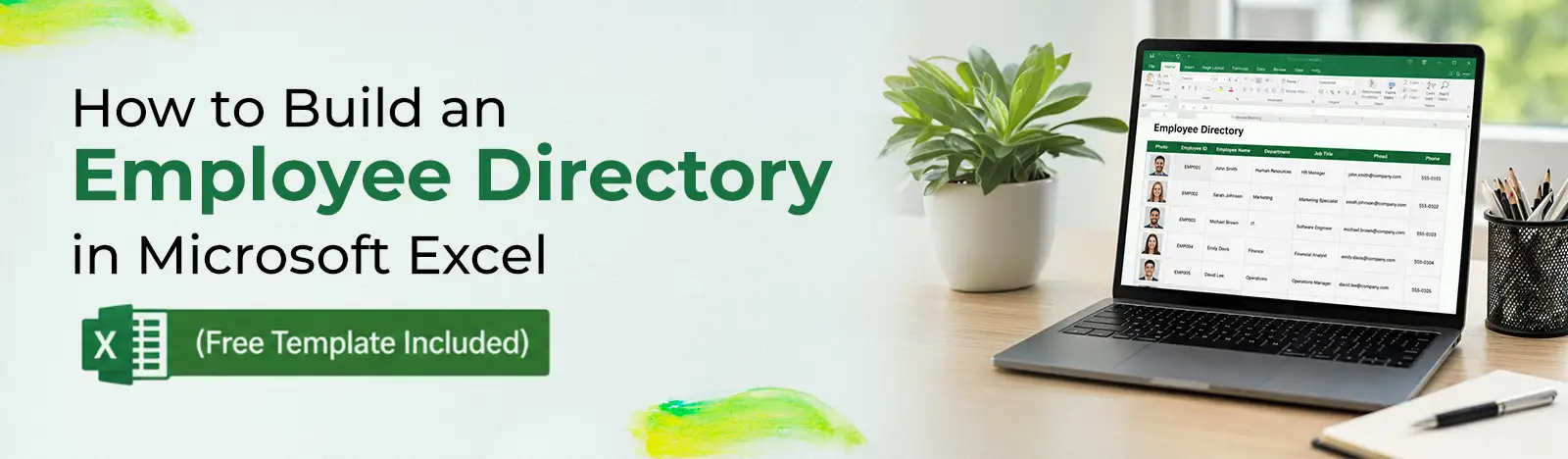
Create an Excel Table (Ctrl+T) with columns for Name, Title, Department, Manager, Email, Phone, Office, and Photo. Use Data Validation for Department and Manager fields so entries stay consistent. Add XLOOKUP on a separate sheet for name search. Use the IMAGE function for dynamic photos. Apply conditional formatting to color-code departments. Total build time: under 2 hours for 100 employees.
What Your Employee Information Spreadsheet Should Include
The directory format in Excel matters more than most people realise. Get the schema wrong at the start and you’ll spend hours rebuilding it once the team grows past 50 people. Here’s what a working employee information spreadsheet actually needs.
COLUMN
TYPE
REQUIRED?
Employee ID
Number
Yes. Use for XLOOKUP.
Name
Text
Yes
Title
Text
Yes
Department
Choice (data validation)
Yes. Prevents typos.
Manager
Choice (data validation)
Yes
Work Email
Text
Yes
Work Phone
Text
No
Office
Text
Recommended
Start Date
Date
Optional. Useful for tenure tracking.
Photo
IMAGE() function
Optional
Building the Directory: 6 Steps
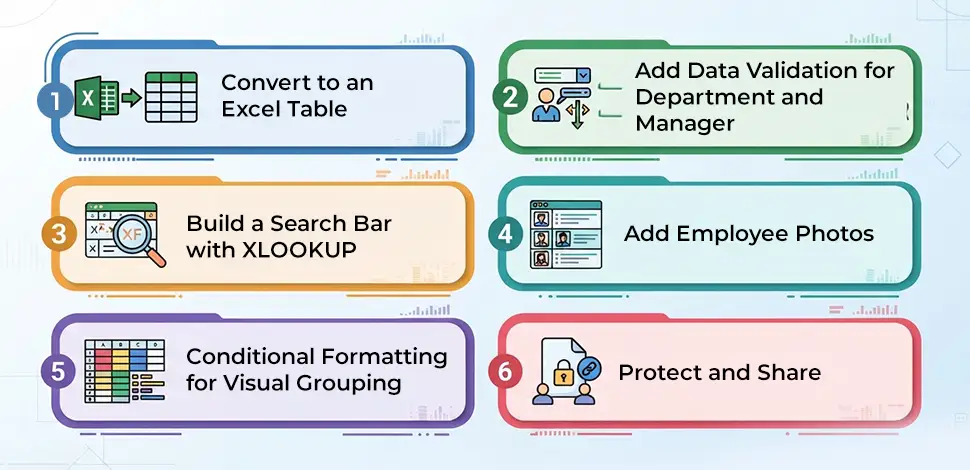
Step 1: Convert to an Excel Table
Most people skip this and regret it within a month. Select your data. Ctrl+T. Tick “My table has headers.” Go to Table Design and name it “tblDirectory.” Why does this matter? Because a named Table auto-expands when you add rows. Your formulas reference column names instead of brittle cell ranges like B2:B500. Filtering and sorting just work. A flat range does none of that, and it will break the moment someone inserts a row where they shouldn’t.
Step 2: Add Data Validation for Department and Manager
Create a second sheet called “Lists.” Add two columns: Departments and Managers. Fill those columns with the values your organisation actually uses. Then go back to the main directory sheet. Select the Department column. Data > Data Validation > List. Point the source at =Lists!$A$2:$A$20. Do the same for Manager. Now every entry in those columns comes from a dropdown instead of free text. No more “Marketing” versus “marketing” versus “Mktg” breaking your filters.
Step 3: Build a Search Bar with XLOOKUP
Add a new sheet. Call it “Search.” Cell A2 is where someone types a name. B2 holds the formula that does the work: =XLOOKUP(A2, tblDirectory[Name], tblDirectory[Title], “Not found”). That’s it. Name goes in, job title comes out. But one field is rarely enough. Wire up C2 for Department, D2 for Email, E2 for Phone. Each cell runs its own XLOOKUP pulling from a different column.
For a richer result, add XLOOKUP formulas pulling Department, Email, Phone, and Office across cells C2 through F2. Want to see everyone in Finance at once? That’s a different function: =FILTER(tblDirectory, tblDirectory[Department]=A2). Pulls every matching row into a dynamic array. Fair warning though: XLOOKUP and FILTER both need Microsoft 365 or Excel 2021. If your organisation is running Excel 2019, these formulas won’t work.
Step 4: Add Employee Photos
Excel’s image handling is the single biggest pain point in any employee information spreadsheet. The simple approach is Insert > Picture, then right-click the image and set “Move and size with cells.” That works for 20 people. It breaks at 50.
The better approach is Microsoft’s IMAGE function, rolled out in 2023: =IMAGE(“https://yourcdn/photos/” & [@EmployeeID] & “.jpg”). Photos load dynamically from a hosted URL. No manual positioning. The problem is that those photos have to live somewhere online. A SharePoint document library works. So does Azure Blob or any CDN. Somebody has to set that up and keep it updated. Past 100 people, an Office Script can batch-insert the photos. Realistically, that means asking someone from IT to write it for you.
Step 5: Conditional Formatting for Visual Grouping
Home tab. Conditional Formatting. New Rule. Pick “Format only cells that contain” and set one rule per department. We usually go with blue for Engineering, green for Marketing, orange for Finance. Pick whatever your org uses.
Step 6: Protect and Share
Review > Protect Sheet locks down the structure while still letting people filter and edit data cells. That keeps the column headers and formulas safe from well-intentioned colleagues who decide to reorganise your layout. Put the file on SharePoint or OneDrive so the team can co-author. And turn on Version History under File > Info. Somebody will accidentally delete a row at some point. Version History means that takes 30 seconds to fix instead of ruining your afternoon.
Free Employee Directory Excel Template
The downloadable .xlsx has the full setup ready to go. A named Table with all 10 columns from the schema above. Data validation lists pre-populated with 15 placeholder departments and managers. A Search sheet with XLOOKUP formulas already wired up for Name, Title, Department, Email, and Phone. Conditional formatting applied by department. Photo placeholders using the IMAGE function. Swap in your company data and the directory works immediately.
When Excel Stops Working as a Staff Directory Template
Past 100 employees, manual data updates become a part-time job. Every new hire is a row someone has to add by hand. Every departure is a row someone has to remember to remove.
Photos at scale are fragile. The IMAGE function requires a hosted library that somebody maintains. Static inserted photos shift position whenever a row gets added or deleted.
Concurrent editing causes problems the moment three or four people try to update the file simultaneously. Co-authoring handles it reasonably on OneDrive, but formula conflicts and cell-level merge errors accumulate over time.
And there’s no live connection to your identity system. Org changes, title updates, new starters. All manual. And when the person who maintains it takes two weeks of annual leave? The spreadsheet sits there with yesterday’s org chart. Somebody eventually searches for a colleague who left a month ago and that’s when the team realises the directory hasn’t been touched.
Outgrown Excel? See How a SharePoint Directory Works
Live Entra ID sync. Photos from M365 profiles. Search-as-you-type. Mobile-responsive.
A More Sustainable Path: SharePoint-Native Employee Directory
When the spreadsheet hits its ceiling, the next step for most organisations on Microsoft 365 is a SharePoint-native employee directory that reads from Entra ID automatically. No manual row additions. Photos pull directly from M365 user profiles. Search-as-you-type with department and location filters. Mobile-responsive without any workarounds. And M365 permissions carry over so the directory respects the same access controls your organisation already uses.
Beyond Intranet’s Employee Directory installs in 30 minutes and configures in about an hour. For teams that have spent six months maintaining an Excel directory and reached the point where it’s costing more time than it saves, the switch typically pays for itself within the first quarter.
Excel vs SharePoint Directory: When Each Wins
EXCEL DIRECTORY
SHAREPOINT DIRECTORY
Best for
Under 50 employees, one-off lists, stopgaps
50+ employees, ongoing org-wide use
Updates
Manual per row
Automatic from Entra ID
Photos
Manual or IMAGE() with hosted library
M365 user profiles, auto-pull
Search
XLOOKUP formula
Search-as-you-type with filters
Mobile
View-only (data entry is painful)
Native responsive UI
Permissions
All-or-nothing file access
Row/column-level from M365
Cost
Excel licence you already have
Per-user subscription
When Excel Is Still the Right Choice
Excel wins when you need a contact list for a specific project that ends in three months. It wins for very small companies under 25 people where the directory changes twice a year. It wins as a data export format for analysis or audit. And it wins as a stopgap while the organisation evaluates a longer-term directory solution. Not every team needs to upgrade. The staff directory template in Excel does exactly what it’s designed to do. The question is whether your directory needs have grown past what a spreadsheet was designed to handle.
Employee ID, Name, Title, Department, Manager, Work Email, Work Phone, and Office cover the essentials. Start Date is worth adding if you track tenure. Skills helps with project staffing. Photo works through the IMAGE function or a static insert. One thing you absolutely should not skip: Ctrl+T to make it a proper Table, and data validation on Department and Manager. Without those two, the directory degrades within weeks.
Name search is straightforward. Put =XLOOKUP(search_cell, tblDirectory[Name], tblDirectory[Title], "Not found") on a Search sheet. Type a name, get the title back. For something more specific, like finding all engineers in New York, FILTER is what you need: =FILTER(tblDirectory, (tblDirectory[Department]="Engineering")*(tblDirectory[Office]="New York")). Both functions need Microsoft 365 or Excel 2021.
Row capacity is not the issue. Excel holds over a million. The real ceiling is performance. Once you load photos, XLOOKUP formulas, and conditional formatting across 500+ records, the file gets sluggish. File size balloons past 5MB, search slows down, and concurrent editing conflicts increase. At that scale, a SharePoint directory with live Entra ID sync is significantly more sustainable.
Three approaches. Insert > Picture and anchor to the cell for small directories. Use =IMAGE("url") for dynamic loading from a hosted photo library (requires Microsoft 365 with IMAGE support, rolled out 2023). For 100+ employees, an Office Script can batch-insert photos, though that requires scripting ability most HR teams don’t have.
Yes. The template section above includes a downloadable .xlsx with a structured Table, data validation, XLOOKUP search, and conditional formatting. Microsoft Office Templates, Vertex42, and Template.net also offer free versions. Look for templates that use a named Table rather than a plain cell range. The plain-range versions break the moment someone sorts or filters.
Excel directories work best for small, static lists under 50 people. SharePoint directories sync from Entra ID automatically, pull photos from M365 profiles, support filtered search, work on mobile, and inherit M365 permissions. For ongoing company-wide directories, tools like Beyond Intranet’s Employee Directory are dramatically lower-maintenance than any spreadsheet.