A practical, vendor-neutral guide for CIOs, IT directors, and digital workplace leaders evaluating SharePoint consulting partners in Australia — including a comparison...
A practical, consultantled walkthrough for teams planning to move off Dropbox.
TL;DR Dropbox to SharePoint migration means moving your files, folders, and permissions from Dropbox into Microsoft SharePoint Online. Most businesses make the switch because they already pay for Microsoft 365, their teams live inside Outlook and Teams, and they need tighter security and governance than Dropbox gives them.
At its core, it’s the structured movement of your company’s files, folders, share links, and permissions out of Dropbox and into SharePoint Online usually as part of a wider Microsoft 365 rollout. Done well, it keeps version history intact, recreates who can access what, and reorganizes content so people can actually find what they need.
It isn’t copypaste. If you’ve got more than a handful of users, live share links with clients, or any compliance exposure, this is a real project: discovery, mapping, a pilot, waves, validation, training.
Who usually needs it
Companies rolling out Microsoft 365 who want one place for files, not three.
Teams outgrowing Dropbox’s flat folders and tired of version confusion.
Regulated businesses — insurance, finance, healthcare, legal that need retention, DLP, and audit logs.
Organizations already paying for Microsoft 365 and wondering why they’re still paying Dropbox too.
Why businesses move from Dropbox to SharePoint
In my experience, nobody wakes up wanting to migrate. They hit a wall. Usually it’s one of these four.
1. File chaos
Dropbox starts clean. A year later you’ve got “Final,” “Final_v2,” and “Final_USE_THIS” sitting in the same folder, and nobody remembers who made what. Search doesn’t save you because filenames are inconsistent. People burn real hours every week just hunting for the current version.
2. Collaboration that doesn’t fit how your team actually works
Dropbox opens files. That’s about it. If your team lives in Teams and Outlook, bouncing out to Dropbox breaks the flow. Coauthoring a Word doc or Excel sheet in Dropbox feels clunky next to SharePoint, where it just works.
3. Compliance and security exposure
Public Dropbox links get created for a onetime share and then live forever. Most Dropbox tenants I audit have hundreds of active external links nobody has reviewed in years. That’s a data leak waiting to happen. SharePoint gives you sensitivity labels, DLP, retention rules, and a proper audit trail. For any business handling PII, PHI, or client financials, that isn’t a nicetohave.
4. No structure to grow into
Dropbox is a folder tool. SharePoint is a content platform. If you want metadata on contracts, a document set for client onboarding, or a simple approval flow for policies, Dropbox doesn’t do that. That’s usually the point where businesses pick up the phone.
Dropbox vs SharePoint: where the real differences are
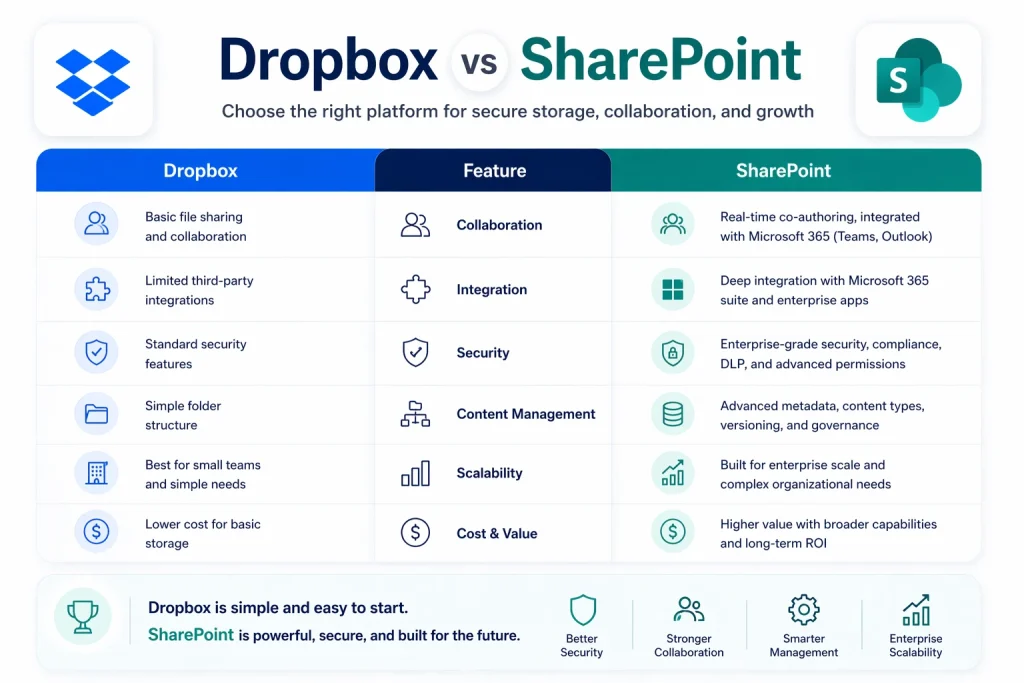
Here’s an honest sidebyside. Dropbox is a perfectly good tool — it just solves a smaller problem than SharePoint does.
Area
Dropbox
SharePoint
Collaboration
Works for sharing files. Coediting feels bolted on.
Realtime coauthoring in Word, Excel, PowerPoint, inside Teams.
Integration
Connects to thirdparty apps. Not deeply tied to Microsoft 365.
Built into Microsoft 365. Works with Teams, Outlook, Power Automate, Power BI.
Security
Baseline controls. Granular policies are limited.
Sensitivity labels, DLP, conditional access, and audit logs.
Governance
Flat folders. Minimal sitelevel policy control.
Site hierarchies, retention policies, compliance center, proper audit trail.
Permissions
Folder and file sharing. Role controls are basic.
Site, library, folder, and itemlevel access tied to M365 groups.
Scale
Fine for small teams. Gets messy at enterprise scale.
Scales to thousands of sites with structured content types.
A good migration doesn’t just swap out Dropbox. It changes how your business handles information.
One place for everything
Instead of juggling Dropbox, email attachments, and local drives, teams work from one structured hub. Content has a home a department site, a project site, a client workspace. When people know where things belong, they stop making copies.
Proper Microsoft 365 integration
Document libraries show up inside Teams channels. Files sync through OneDrive. Outlook can attach SharePoint links instead of duplicating files. Power Automate fires off document changes. This is the quiet win you get to stop paying for overlapping tools.
Automation that isn’t a side project
Approval flows for contracts, autotagging, scheduled content reviews, retention by document type all built in. Most Dropbox shops are emailing spreadsheets around for signoff. That stops on day one.
Room to grow
SharePoint scales with you. Going from 50 users to 5,000 doesn’t mean redesigning the platform. Access is tied to Azure AD, so you manage permissions through groups, not through a spreadsheet.
The Dropbox migration process, step by step
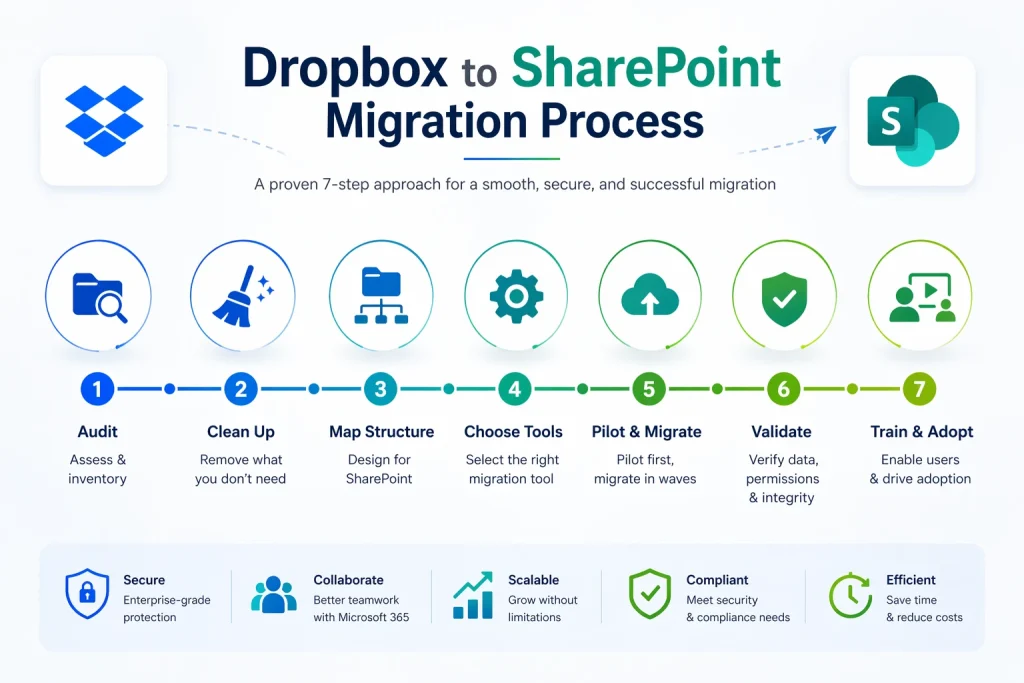
Every project we run follows the same seven stages. Skip one and the problem will show up three months later, usually in front of your compliance officer.
Step 1 — Audit what’s actually in Dropbox
Before anything moves, we pull a full inventory: total size, file count, largest files, oldest files, active vs. stale content, external share links, restricted folders. For a lot of clients, this is the first time leadership actually sees what’s in Dropbox. It’s usually a surprise.
Step 2 — Clean up and organize
We never recommend migrating junk. Duplicates, orphaned files, test documents, and content nobody has touched in five years either get archived or stay behind. Typically 20–40% of what’s in Dropbox doesn’t need to come along. That one step alone cuts cost and timeline.
Step 3 — Map the structure to SharePoint
This is where experience pays off. We translate Dropbox folders into the right SharePoint architecture — hub sites for departments, team sites for projects, libraries with useful metadata, a permission model tied to Microsoft 365 groups. Rushing this step is the numberone reason SharePoint rollouts quietly fail.
Step 4 — Pick the right migration tool
Tool choice depends on volume, complexity, and whether version history and timestamps need to come along. More on tools below. The short version: Microsoft’s own Migration Manager handles most Dropbox jobs. Enterprise tools take over when scale or complexity demands it.
Step 5 — Pilot, then migrate in waves
We always pilot one department first, end to end. Only after the pilot passes validation do we schedule waves, usually over weekends to minimize disruption. Incremental migrations keep Dropbox and SharePoint in sync until golive.
Step 6 — Validate
Postmigration, we compare file counts, sizes, permissions, and sample documents against the Dropbox source. Anything that doesn’t match gets investigated and fixed. Clients get a validation report. This part isn’t optional — it’s what you show an auditor.
Step 7 — Train the humans
Tech only matters if people use it. We run short, rolebased sessions (not generic “here’s SharePoint” webinars), publish quick reference guides, and stay on hand for a support window after golive. Adoption is where most migrations quietly die.
Organizations planning a large-scale migration often work with experienced SharePoint Migration specialists to avoid governance gaps, permission conflicts, and post-migration adoption issues
Common challenges in Dropbox Migration and Why they hurt
Three problems catch most teams off guard.
Silent data loss
Long file paths, unsupported characters, files over the size limit, files open during transfer — any of these can fail quietly. Without proper validation, you don’t find out until someone needs that file six weeks later. A proper premigration assessment catches these up front.
Permission mismatch
Dropbox and SharePoint don’t speak the same permissions language. A Dropbox “anyone with the link” doesn’t map cleanly to anything in SharePoint, and external sharing needs deliberate policy choices. Map permissions blindly and you either lock people out or overshare. Both are bad.
User resistance
Underrated, but this is what kills adoption. If the finance team has used a Dropbox folder for ten years, they’re not thrilled about a new interface. Without clear communication, training, and a named internal champion, you’ll watch people quietly keep using Dropbox long after golive.
Tools we use in Dropbox to SharePoint Migration
Tool choice is an outcome of discovery, not a starting point. The main options:
SharePoint Migration Manager — Microsoft’s free tool. Handles most DropboxtoSharePoint jobs up to moderate scale.
ShareGate — Strong reporting. Good for complex permissions and midsize migrations.
AvePoint Fly / Elements — Enterprise scale. Excellent for regulated industries needing detailed audit trails.
Quest On Demand Migration — Useful for large tenants running parallel M365 consolidation projects.
None of these save you from bad planning. A weak plan with the best tool still produces a weak migration.
A real example: 180person insurance brokerage
A recent client runs an insurance brokerage around 180 employees across three offices. Their situation is typical of what we see.
Before
4.2 TB in Dropbox, built up over seven years.
Over 600 active external share links. Nobody knew which were still needed.
Policy documents scattered across 15 toplevel folders with inconsistent naming.
Compliance had flagged audit risk because retention couldn’t be enforced.
Staff were emailing files back and forth. Coediting barely worked.
After
Content reorganized into department hub sites with clear metadata for client files, policies, and ops.
External sharing locked down by policy. Legacy links reviewed about 70% revoked.
Retention labels applied automatically by document type. Compliance signed off.
Teams coauthor directly in Microsoft Teams now. Emailwithattachments traffic dropped sharply.
Their own analytics showed teams saving 6–8 hours a week on “finding the right file.”
The technical migration took about six weeks. Cleanup and training took another four. Nine months later, Dropbox was decommissioned and the cost savings alone paid for the project.
Dropbox to SharePoint Migration Cost
I won’t give you a fixed number here. Anyone who quotes a price without seeing your environment is guessing. What I can show you are the factors that actually move the needle.
Cost driver
What it actually means
Data volume
Moving 200 GB is a different job than moving 20 TB. Bandwidth, throttling, and timeline all shift.
File complexity
Deeply nested folders, long file paths, and hundreds of live share links multiply the cleanup work.
Permissions
If Dropbox access is chaotic, we need time to design a clean permission model before anything moves.
Tooling
Microsoft’s own tool is free. Enterprise platforms charge per GB or per user.
Change management
Training and adoption often cost more than the technical move — and matter more.
For an honest estimate, we run a free migration assessment. Thirty minutes is usually enough to give you a realistic range.
Why you probably shouldn’t run this migration alone
It’s tempting to hand this to your IT team and call it done. I’ve seen the result. Here’s the short version of what usually goes wrong:
Internal teams underestimate cleanup effort by 3–5x.
Permissions get mirrored instead of redesigned, so the chaos just moves house.
Pilots get skipped because “we tested it on one folder.” Then production breaks.
Nobody owns change management, so adoption stalls and Dropbox stays alive for years.
Compliance gaps get missed — retention, DLP, and audit logs never get configured properly.
A half finished migration is far more expensive than doing it right the first time. You pay for Dropbox and SharePoint at the same time, users lose trust in the new platform, and the second attempt carries political baggage. A SharePoint migration services partner brings templates, tools, and pattern recognition from dozens of projects. You get a predictable outcome instead of a risky experiment.
Ready to migrate from Dropbox to SharePoint? Let’s scope it properly
If you’re seriously thinking about making the move, the smart first step isn’t picking a tool. It’s understanding what you actually have in Dropbox and what a clean SharePoint environment should look like for your business.
Two ways to start with us:
Free 30minute consultation — a working session with a SharePoint consultant. We’ll review your current setup, answer your specific questions, and outline a realistic migration path.
Migration assessment — a detailed analysis of your Dropbox tenant mapped against a proposed SharePoint architecture, with timeline, risks, and effort clearly called out.
No obligation, no sales pitch. If we’re not the right fit, we’ll say so. Book a consultation and you’ll walk away with a clear picture of what this project actually looks like for your business.
At a high level: audit Dropbox, clean up stale content, design the SharePoint site and permission structure, pick a tool, pilot one department, migrate in waves, validate, and train users. Most midsize businesses finish the whole thing in 6–12 weeks with expert support.
For businesses already on Microsoft 365 — usually yes. SharePoint gives you deeper collaboration, stronger governance, better security, and real automation. Dropbox is a simpler tool that works fine for small teams with no compliance pressure. The right answer depends on where your business is going, not just where it is today.
For a typical midsize company (50–300 users, 1–5 TB), expect 4–10 weeks end to end: 1–2 weeks of discovery and cleanup, 2–4 weeks of design and pilot, 1–3 weeks of wave migrations, then a couple of weeks of validation and training. Enterprise migrations run 3–6 month
The main risks are silent data loss (usually from path length or bad characters), broken permissions, missing version history, cutover downtime, and poor user adoption. All of them are manageable with proper pilots, validation reports, and change management. Skip those and the risks become real fast.
Yes, and you should. We usually keep Dropbox in read only mode during cutover so users have a fallback. After validation and a stabilization window (30–60 days), Dropbox is decommissioned.
Not if the migration is done properly. Most professional tools preserve version history, timestamps, and original authorship. Confirm this explicitly in your project scope don’t assume it.
Yes at least lightly. Lift and shift migrations carry all your Dropbox problems into SharePoint. Even small fixes (clean names, clearer hierarchy, a bit of metadata) pay off within weeks through faster search and better governance.
About Author
Bhupendra Singh
Bhupendra is a Digital Transformation Expert and Microsoft 365 Consultant who helps organizations modernize the way they work using the Microsoft 365 suite of services. As a Microsoft Certified Teams Administrator Associate, with credentials in Microsoft 365 Fundamentals and the Microsoft Service Adoption Specialist assessment, he combines technical expertise with adoption strategies to drive meaningful business change.