Microsoft Power Automate is a cloud-based solution that automates everyday tasks within organizations without heavy coding.
It helps users create and automate workflows in multiple applications. To create automated workflows, the user should mention what action should take place at the specified time. After the workflow is created, users can access it through an app on their phone or device.
Example of automation:
Automates the document approval process by routing the files to managers so that they can approve them.
Converts reports and files into PDF format and saves them automatically into the relevant folders
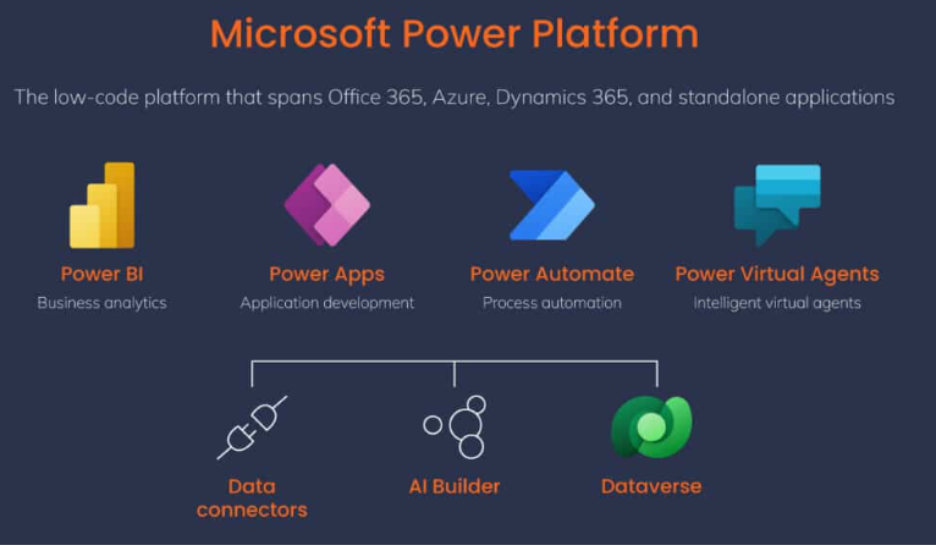
Where Power Automate Fits in Microsoft Power Platform?
Deep Dive into Power Automate
Power Automate is a version of PowerShell: a scripting/development language. Users can write instructions in this version to automate operations. It can be integrated well with Microsoft apps, including Power BI Apps, Dynamics 365, and MS 365. Power Automate can automate all tasks, from defining stages and steps to document approval and content management.
Power Automate Can Be Integrated With
Microsoft Power Apps
Microsoft Power BI
MS Power Automate
Microsoft Dataverse
How Microsoft Power Automate Works?
Power Automate is based on user-created flows. Each flow is backed by a logic. Here are the core components of Power Automate:
Triggers: The initial point of a workflow that initiates Power Automate about where to begin the automation of the task. Example:
Actions: This is the next step after the Triggers are operated. Example: updating database, creating file, and more.
Flow: This includes the end-to-end automation workflow that you create in the Microsoft Power Automate. It connects triggers with actions.
Connecters: This term is used for other apps and tools with which Power Automate can integrate. These include: MS Outlook, Google Drive, Dropbox and more.
Types of Flows:
Automated Flows: Occurs on a specific event date. It automatically runs.
Instant Flows: It is done manually after a user clicks the button.
Scheduled Flows: Automatically runs when some task is scheduled.
Desktop Flows (RPA): Uses robotic process automation (RPA) to automate tasks on computer interface.
Microsoft Power Automate Desktop is a desktop-based RPA tool that is designed to automate repetitive operations such as web scraping, file management and more.
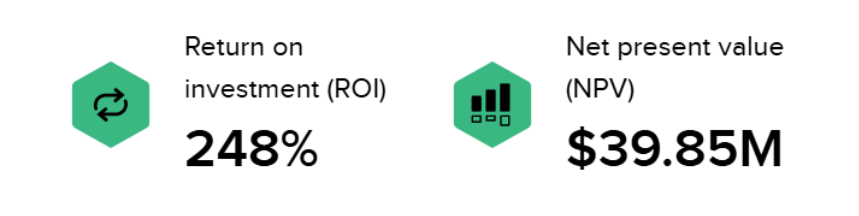
Microsoft commissioned Forrester Consulting to conduct a Total Economic Impact™ (TEI) study and examine the potential return on investment (ROI) enterprises may realize by deploying Power Automate.
Key Features of Microsoft Power Automate
Integrations with 1000+ Apps and Services
Power Automate can be integrated with more than a thousand enterprise apps and tools.
This integration environment allows enterprises to manage workflows across project management software, document storage systems, emails, and other platforms.
Built for Both Business Users and Developers
Users can create workflows using drag-and-drop functionality and pre-built templates. It can build advanced automation scenarios and integrate with third-party systems.
Enables Low-Code and No-Code Automation
Without writing scripts or implementing custom integrations, users can leverage visual, easy-to-use dashboards to design workflows. This can be done without having much knowledge about heavy coding. Tech users can extend these automations with advanced logic or custom connectors whenever required.
AI Builder Integration
Users can add advanced features to their workflows by integrating AI tools through AI builder. AI builder is a part of Microsoft Power Platform that gives users the capacity to forecast demand, predict outcomes and drive automated operations.
Cloud + Desktop Automation
Power Automate supports cloud-based automation and desktop automation. It ensures online services and applications while handling tasks. Example of cloud automation: it automatically saves email attachments to cloud storage.
Example of desktop automation: feeds data into accounting systems, which are hosted on local servers.
Process Mining and Analytics
Process mining features help organizations examine end-to-end operational data and support teams in identifying pain points.
Real Business Use Cases of Power Automate
Let us see how Power Automate helps organizations in different departments.
Human Resources: With Power Automate, HR professionals can streamline employee onboarding, leave approval management, trigger training sessions for new joiners and more.
Finance and Accounting: Power Automate helps manage and automate invoice processing, payment reminders, invoice approvals and data entry. It supports employees create reports in real-time.
Sales and marketing: Automates CRM updates, social media post scheduling and assignments of leads.
IT and Operations: Power Automate leverages AI Copilot to extend automation with natural language. It also connects well with legacy systems while automating tasks such as data extraction, document approvals and more.
Customer service: Whenever customers submit satisfaction survey through Microsoft Forms, you can create a flow for adding the survey response to a SharePoint master list. Power Automate streamlines the feedback collection process and improves customer service.
Microsoft Power Automate Pricing & Licensing
It is better to understand Power Automate pricing and licensing plans to select the right model for your business. Here is the description:
Free Plan: A beginner-friendly plan that helps new users explore the platform’s full capabilities. It includes features for creating standardized charts, templates, and connectors. It is a great initiative that promotes small-scale automation in an enterprise.
Per User Plan: This plan helps users automate and integrate with various applications (M365 suite). For those looking for self-service automation, this is a perfect plan.
Per Flow Plan: Multiple users can use the license. This plan ensures that individual flows are licensed, rather than each user.
RPA Licensing (Robotic Process Automation): This plan is for organizations needing advanced automation capabilities. The plan includes attended and unattended RPA.
Power Automate lets you send reminders at configurable intervals, leading to contract renewals with scheduled maintenance.
What Are the Benefits of Using Microsoft Power Automate?
In the era where organizations are using tools for automation, Power Automate removes the intervention of humans. It connects to data sources such as Office 365 and Dynamics 365.
Here are the benefits mentioned of MS Power Automate:
Improve employee productivity
Power Automate promotes automation of operations. This saves time and enhances employee efficiency. With Power Automate, your team can focus more on critical tasks such as analysis, customer service, or decision-making rather than daily operations.
Connect multiple apps easily
Power Automate can be integrated with leading tools such as SharePoint, MS Teams, Excel, and more. This helps businesses with streamlined data flow across the organization.
No-coding/Low-coding
With a drag-and-drop interface, non-developers can also build workflows. So, anyone with the non-tech background can easily get hold of the MS Power Automate features.
Supports Robotic Process Automation
Power Automate can simulate human actions such as clicking buttons and data entry. It uses RPA to automate operations in legacy applications.
What Are the Limitations of Microsoft Power Automate?
Complex logic might be difficult to understand
Flows may run in a sluggish way due to large datasets
Advanced features are not available in the free version
Promotes automation of tasks but with restrictions on: number of API calls per day, execution duration, and flow run
Non-tech users can learn basic flows, but advanced features require in-depth knowledge
Microsoft Power Automate vs Other Automation Tools
Feature
Microsoft Power Automate
Zapier
UiPath
Ease of Use
Moderate – easy for basic flows, but complex automation may require expertise
Very easy – beginner-friendly with templates and no-code builder
Moderate to difficult – requires technical skills for advanced RPA
Very strong – industry leader in advanced RPA and automation
Enterprise Integration
Excellent – deep integration with Microsoft ecosystem (Azure, Dynamics, Office)
Strong – connects 8,000+ apps but less enterprise-focused
Excellent – designed for large-scale enterprise automation
Pricing
Flexible but complex – included with Microsoft 365; premium plans start ~$15/user/month; RPA extra
Simple – free plan available; paid plans from ~$20/month
Expensive – enterprise pricing, often high upfront and per-robot costs
Future of Workflow Automation
Tools like MS Power Automate are not just restricted with automation of tasks. It combines data insights, artificial intelligence, and automation. Organizations are rapidly evolving towards smarter and intelligent tools and processes. Here are the key trends shaping the future of automation:
Intelligent workflows: Future workflows will be self-optimizing and context-aware. Examples: routing customer request to the suitable team, considering actions based on predictive analytics
Hyperautomation: This concept enables organizations to automate multiple processes with the help of technologies such as machine learning, integration platforms, AI, and more
AI-driven automation: AI uses natural language prompts to generate automations and helps users gain insights into the workflow without hassles.
Process mining: It analyzes system data to discover how business processes work in practice.
Conclusion
Automation has become a necessity in today’s business era. From improving efficiency to reducing manual work and streamlining workflows, automation has become a part of all operations in every industry. Microsoft Power Automate is a leading tool that has gained popularity in the past few years. With strong integration capabilities and no-code/low-code features, it can be used by tech and non-tech users to create automated workflows.
It improves employee collaboration, modernizes workflow, and helps create agile and scalable operations for the future. If you have any queries regarding MS Power Automate, please reach out to us.
Microsoft Power Automate flows are the automated workflows which are designed by the business users to perform tasks at the particular time. Flows are created to automate tasks without human intervention.
Microsoft Power Automate Desktop is an automation tool that enables users to automate repetitive, manual, and time-consuming tasks on their Windows desktop.
Power Automate is highly secure as it is backed by enterprise-grade security features such as Data Loss Prevention (DLP) policies, encryption, MS Entra ID integration and other features.
Power Automate is easier to learn for people with technical and non-technical backgrounds. It is helpful to especially those who are familiar with the Microsoft 365 ecosystem.
About Author
Bhupendra Singh
Bhupendra is a Digital Transformation Expert and Microsoft 365 Consultant who helps organizations modernize the way they work using the Microsoft 365 suite of services. As a Microsoft Certified Teams Administrator Associate, with credentials in Microsoft 365 Fundamentals and the Microsoft Service Adoption Specialist assessment, he combines technical expertise with adoption strategies to drive meaningful business change.