Customization is a Universal Allure! Customization brings authenticity to anything it touches. It offers a sense of ownership for everyone. When it comes to the workplace, providing a sense of dominion is imperative for all organizations. Microsoft recognized this as of vital importance and has recently introduced customized themes and branding features into its Modern SharePoint sites in Office 365. These Custom SharePoint themes can enhance your brand visibility within the organization.
Sounds awesome, doesn’t it? If you also want to give a personalized touch to your SharePoint site, then you have landed at the right place.
What Are SharePoint Themes?
SharePoint themes are collections of various design elements. These elements include color palettes, font styles, and site layout designs. These customized SharePoint themes offer a lightweight branding experience to the SharePoint site.
A site owner can curate these themes. This customization is optional as they are available in drag-and-drop options. It will instantly change the look and feel of your SharePoint site.
Are you ready to give a custom look to your SharePoint site? Let’s get started.
This attractive SharePoint Site theming option allows user to apply custom or default themes to all modern sites (communication or team sites) to deliver new engaging and familiar looks.
The process is extremely simple. In this article below, we are sharing the step by step process of using the theme generator using PowerShell.
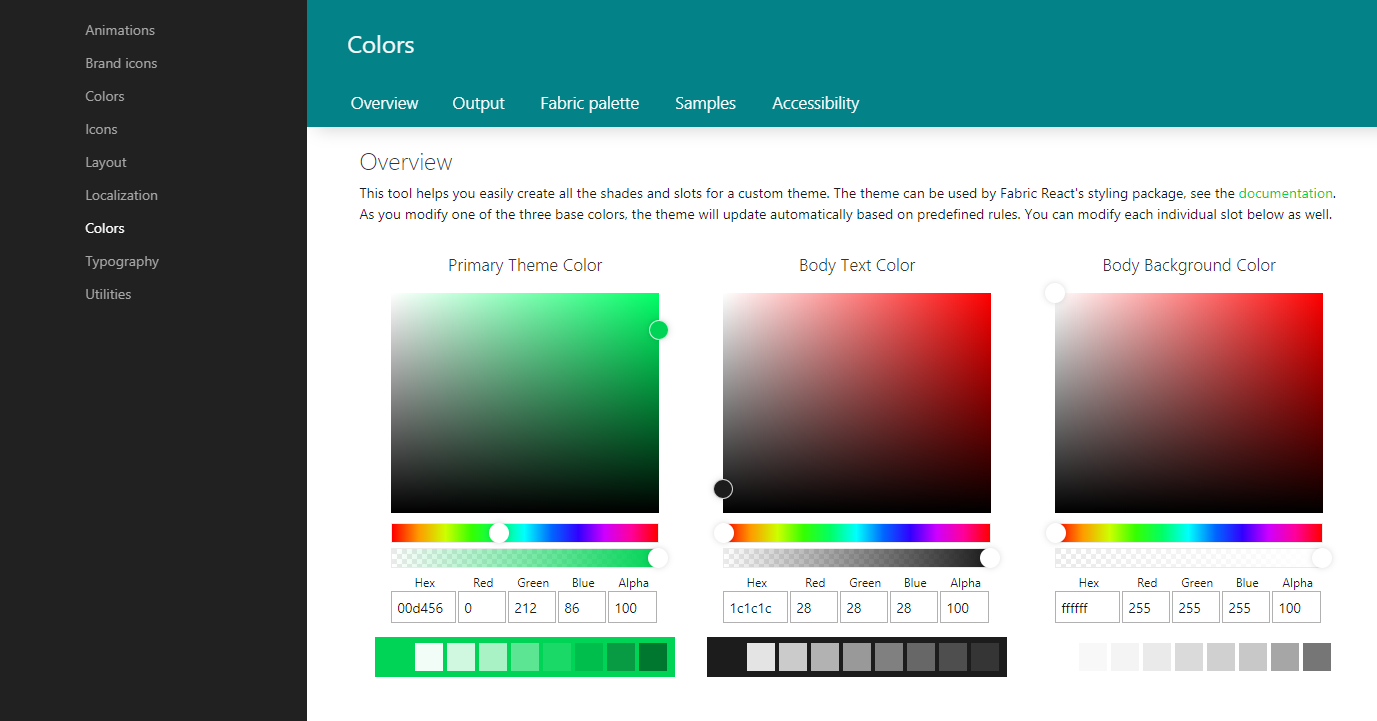
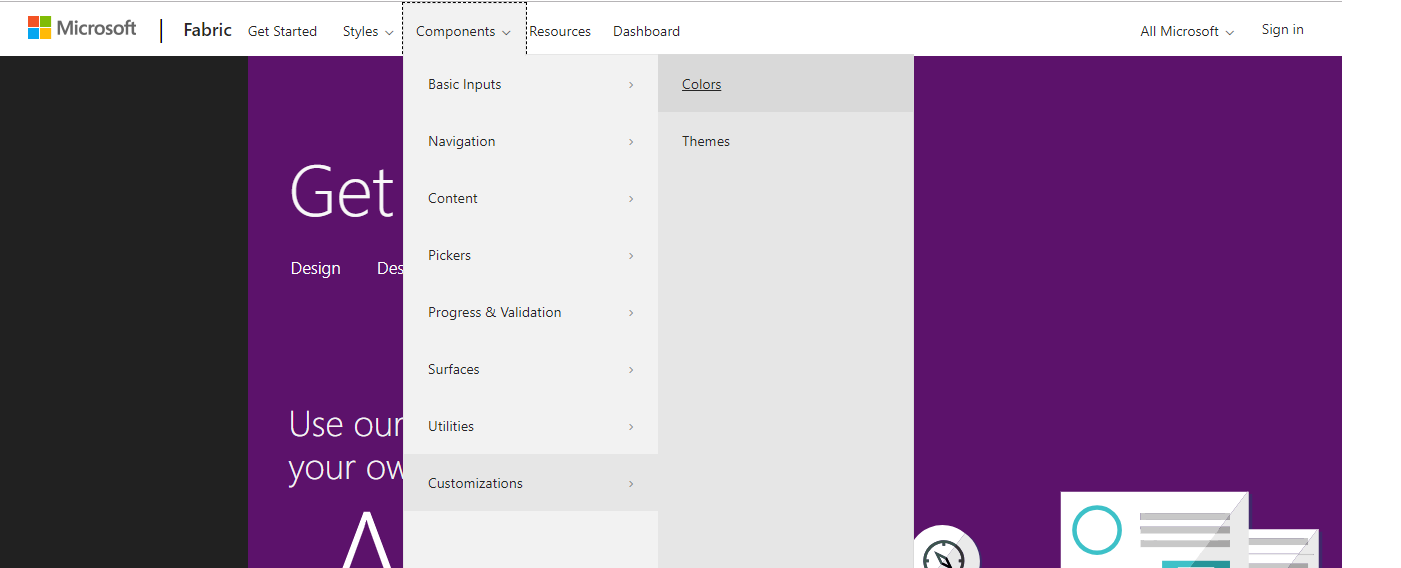
2. Then go to Components>>Customizations>>Colors
(https://developer.microsoft.com/en-us/fabric#/customizations/colors)
3. As we proceed further to create our custom theme, we can choose from various color options available under:
a) Primary color theme
b) Body text color
c) Body background color
4. From the color palette choose a specific shade for each one of them; these colors will determine what your custom theme will look like.
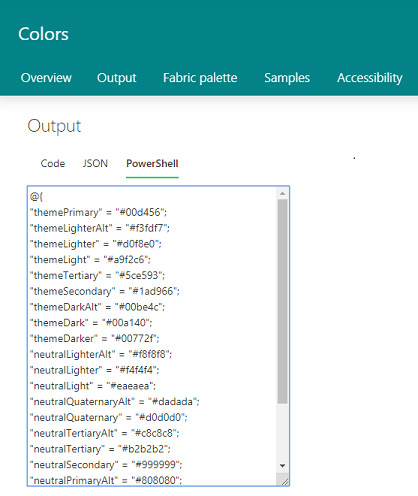
5. Copy the PowerShell generated in the Output.
6. Now open PowerShell and connect to your SharePoint Tenant. To Open PowerShell, go to your Windows menu and search for “Windows PowerShell ISE”– Run as administrator.
7. To run the PowerShell cmdlets for theme management, you must do the following:
Download and install the SharePoint Online Management Shell. If you already have a previous version of the shell installed, uninstall it first and then install the latest version.
8. To connect PowerShell with your SharePoint online tenant-
Run “Connect-SPOService” command in your PowerShell.
9. Next, It will ask for SharePoint tenant URl where you want to add the custom color theme.
10. Enter your Microsoft account credentials if prompted.
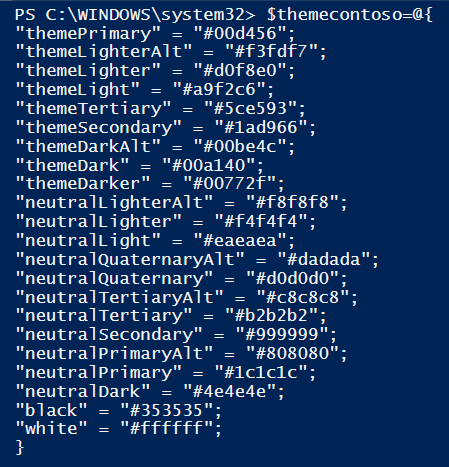
11. Write “$themecontoso = “ and paste copied PowerShell script
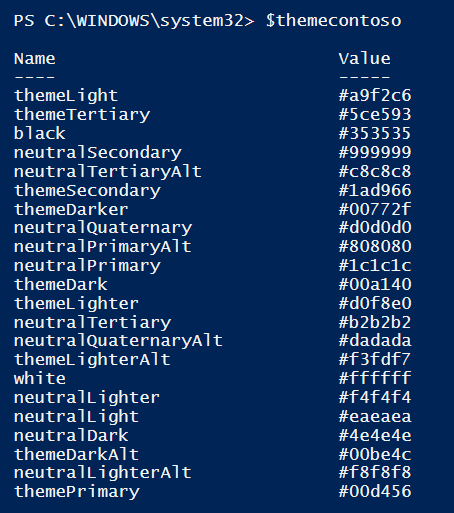
12. Now again write “$themecontoso” at the end of the script and press enter and you will find that the values are assigned to variables.
13. To add this theme, write the below command, and assign a proper name to your theme so it is easily identified.
a) For Light colored theme the command will be: Add-SPOTheme –Name “Theme Name” –Palette $themecontoso –IsInverted $false
b) And for Dark colored theme the command will be : Add-SPOTheme –Name “Theme Name” –Palette $themecontoso –IsInverted $fTrue
14. To Apply the theme:
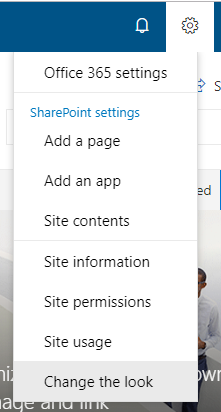
a) Open your modern site and click on the cog icon
b) Click on “Change the Look”
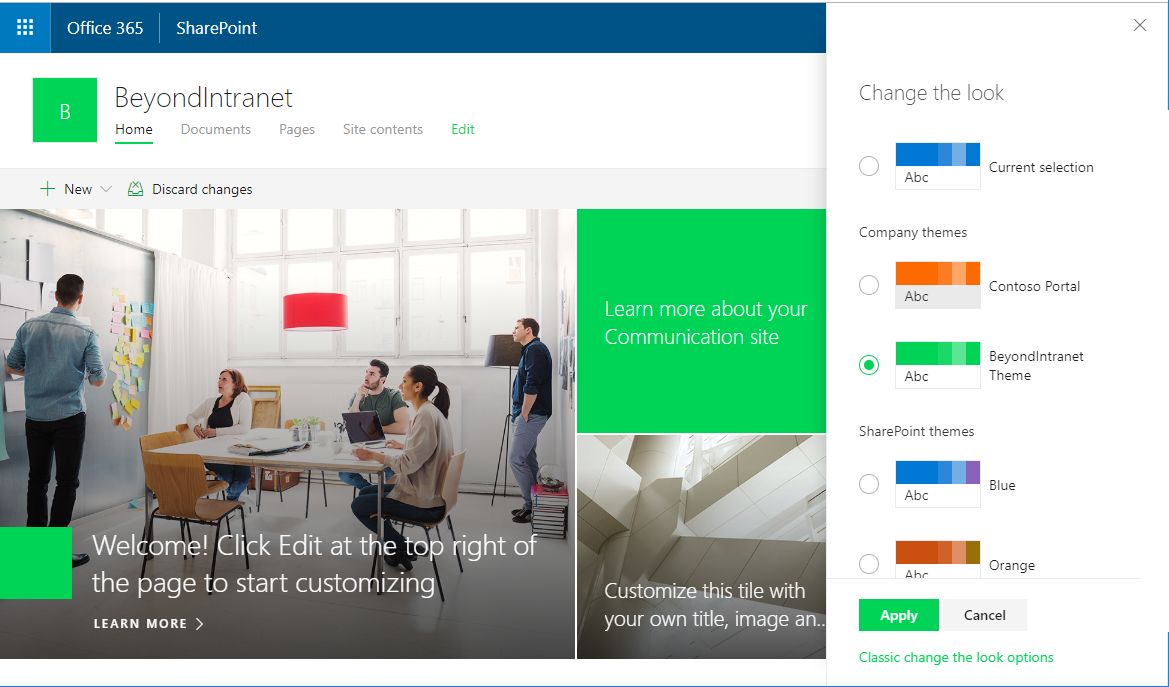
c) Select your custom theme and click Apply
15. Your custom theme will start appearing on the right side panel.
SharePoint site theming: PowerShell cmdlets
The following cmdlets are available for managing site themes from PowerShell:
a) Add-SPOTheme – Creates a new custom theme, or overwrites an existing theme to modify its settings.
b) Get-SPOTheme – Retrieves settings for an existing theme.
c) Remove-SPOTheme – Removes a theme from the theme gallery.
d) Set-SPOHideDefaultThemes – Specifies whether the default themes should be available.
e) Get-SPOHideDefaultThemes – Queries the current SPOHideDefaultThemes setting.
How We Can Help You In Customizing Your SharePoint Themes
Beyond Intranet is a Microsoft Gold Partner Company. With over 18 years of experience in the domain we successfully served more than 500 clients across the globe. We boast a team of more than 300 brilliant individuals, a significant number of whom hold certifications from Microsoft. We are experts in managing the systems and workings of global enterprises. We help enterprises to steer through their SharePoint journey.
In case you find it difficult to customize your SharePoint themes feel free to consult us today. Our Customized SharePoint Themes services can offer you the following benefits:
- Strategic SharePoint Alignment:
Our SharePoint customization solutions align the SharePoint site with your existing organizational strategy. It provides a unified digital ecosystem.
- Upgraded User Experience:
A well-designed and implemented SharePoint theme enhances user satisfaction and productivity by 2x. It will result in increased user engagement.
We help you to customize SharePoint themes to ensure that your SharePoint site reflects your brand’s identity. It will strengthen brand consistency.
Beyond Intranet’s expertise ensures that the customized theme does not compromise performance. It will maintain optimal speed and responsiveness.
We ensure that your SharePoint customized theme is scalable. We ensure it should be adaptable to future SharePoint updates and expansions.
Still have any queries write us at: [email protected]
Try on your own or ask for help!
So, isn’t it simple to create your own branded SharePoint themes which can be easily applied all over your Modern SharePoint tenant? Just try the simple steps and let us know how it went.
Even if you face any challenges, the Beyond Intranet SharePoint Consulting team of expert developers is always there to help. Connect with us at [email protected] and we will respond to you as soon as we can.
Frequently Asked Questions (FAQs)
To add a custom theme in SharePoint Online, create a theme palette using the SharePoint Theme Generator, then upload it using the Add-SPOTheme PowerShell command. After the theme is added to the tenant theme gallery, you can apply it from Settings → Change the Look in your modern SharePoint site.
To create a SharePoint custom theme, generate a JSON color palette using the SharePoint Theme Generator. The palette defines site colors such as navigation, background, and text. Upload the JSON file using PowerShell so the theme becomes available across modern SharePoint sites.
To apply a custom theme, open your SharePoint site, click Settings, select Change the Look, choose the available custom theme, and click Apply. The selected theme will update the site's color scheme and branding instantly.
To deploy a custom theme, install the SharePoint Online Management Shell, connect using Connect-SPOService, and run the Add-SPOTheme command with the JSON palette file. This uploads the theme to the tenant theme gallery so it can be applied to modern SharePoint sites.
To update a SharePoint theme, modify the JSON palette file and redeploy it using the Add-SPOTheme command with the same theme name. SharePoint will overwrite the existing theme, and updates will appear on sites using that theme.
To remove a SharePoint custom theme, run the Remove-SPOTheme command in the SharePoint Online Management Shell. This deletes the theme from the tenant theme gallery and prevents users from applying it to new sites.
To hide default SharePoint themes, run the Set-SPOHideDefaultThemes $true command in PowerShell. This ensures users only see the custom themes provided by your organization when selecting Change the Look.
To test a SharePoint custom theme, preview it using the SharePoint Theme Generator or apply it to a test site collection. Testing helps verify color contrast, branding alignment, and usability before deploying the theme to production sites.

About Author
Bhupendra SinghBhupendra is a Digital Transformation Expert and Microsoft 365 Consultant who helps organizations modernize the way they work using the Microsoft 365 suite of services. As a Microsoft Certified Teams Administrator Associate, with credentials in Microsoft 365 Fundamentals and the Microsoft Service Adoption Specialist assessment, he combines technical expertise with adoption strategies to drive meaningful business change.