A practical, vendor-neutral guide for CIOs, IT directors, and digital workplace leaders evaluating SharePoint consulting partners in Australia — including a comparison...
Quick answer: A SharePoint AI Readiness Assessment is a structured evaluation of a Microsoft 365 tenant’s governance, information architecture, content...
Many of our SharePoint add-in customers keep asking us if is it possible to easily export an already prepared Excel sheet into a SharePoint list.
And we say- yes, it is possible and extremely simple!
Our SharePoint add-in users who are using our Employee Onboarding solution want to quickly bring their already prepared Excel sheet with master data on departments, employee details, and standard tasks into the add-in without much hassle. We have a solution that can be extremely helpful. Let’s see the step-by-step process for making this happen.
Option 1- When you have to create a completely new SharePoint list.
We assume that you have an excel sheet with all your master data in the format or corresponding columns as you would like to see in the new SharePoint list. You can export this whole data from within excel by following these simple steps.
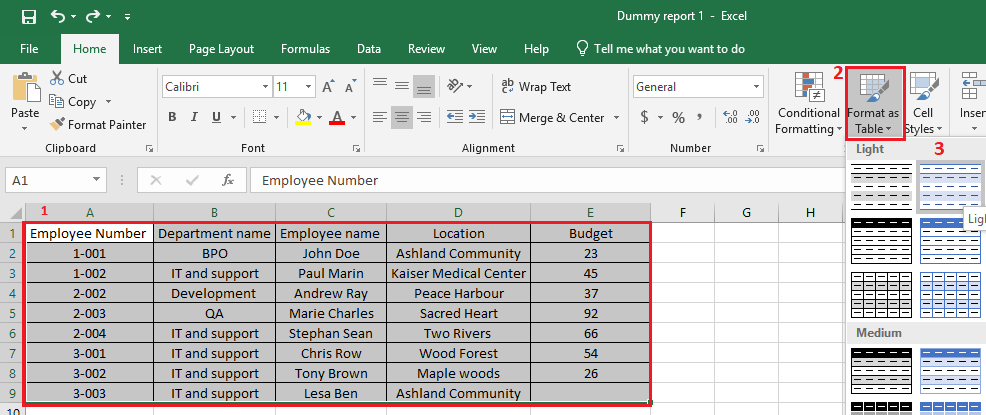
1. Open your excel sheet and select the data to be copied. Then click on the Format as a Table option.
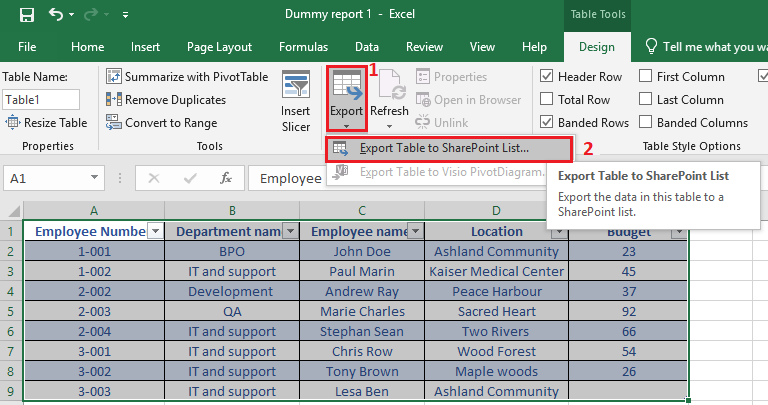
2. While still selecting the data table, choose an Export option from the ribbon and select the ‘Export Excel table to SharePoint List’ option.
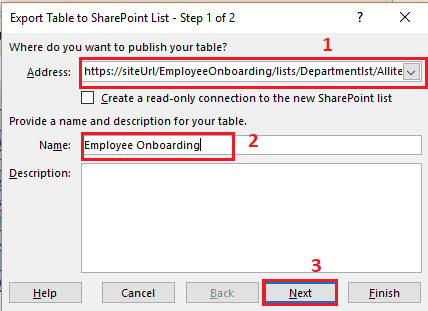
3. A pop-up appears as below where you will have tospecify the URL of the site you are importing to, then provide your list name. Click on Next.
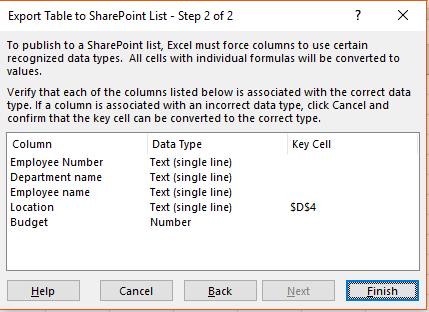
4. You will find all the columns with corresponding recognized column types (Currency, Date, etc.). Just click Finish.
5. You will be getting a success message/pop-up and your list would be published at the SharePoint site you provided.
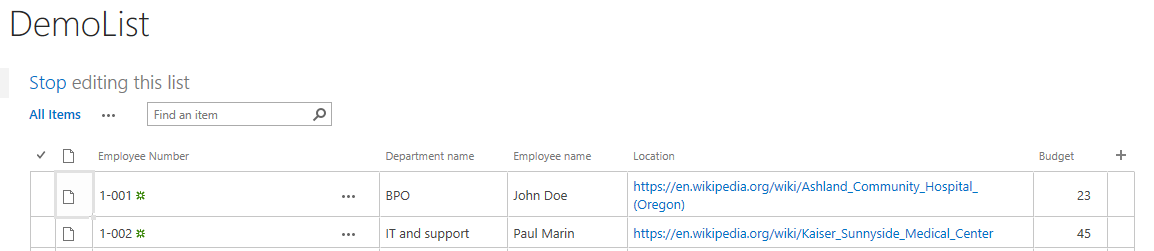
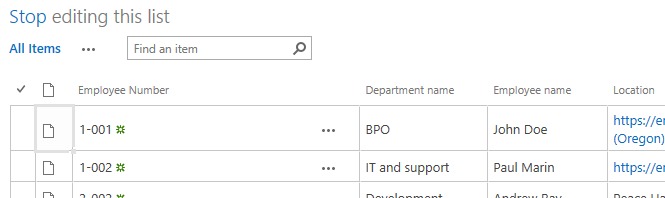
6. It will default to Datasheet view, just click Stop to view it as a normal list.
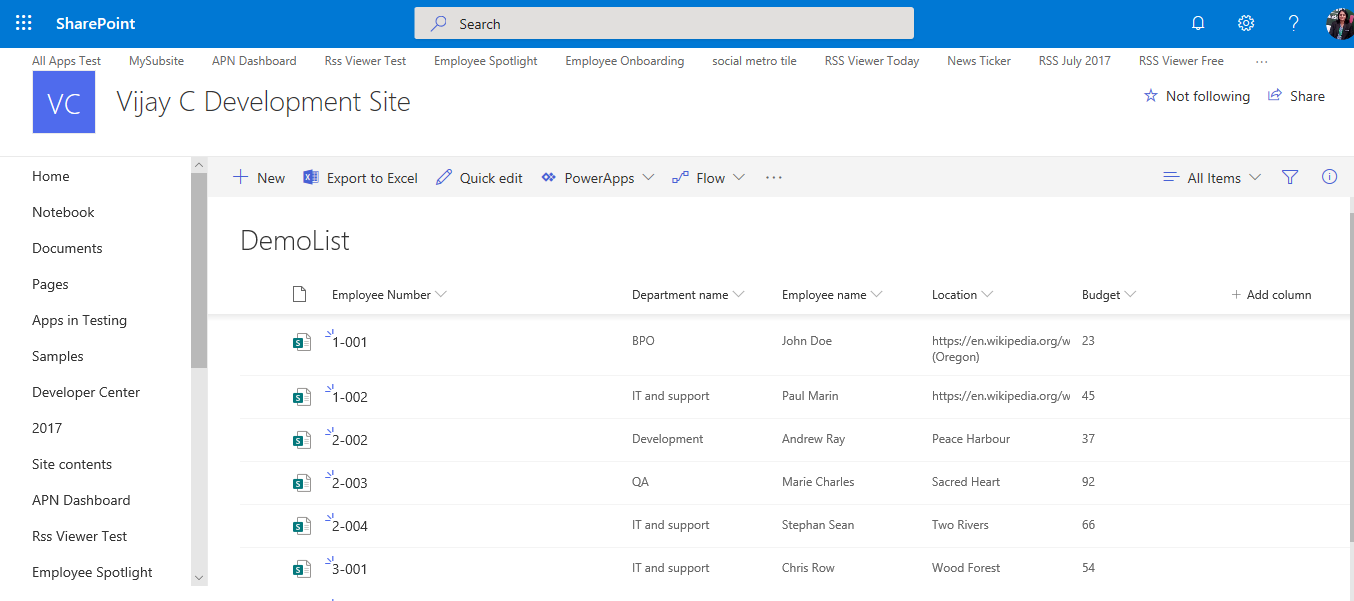
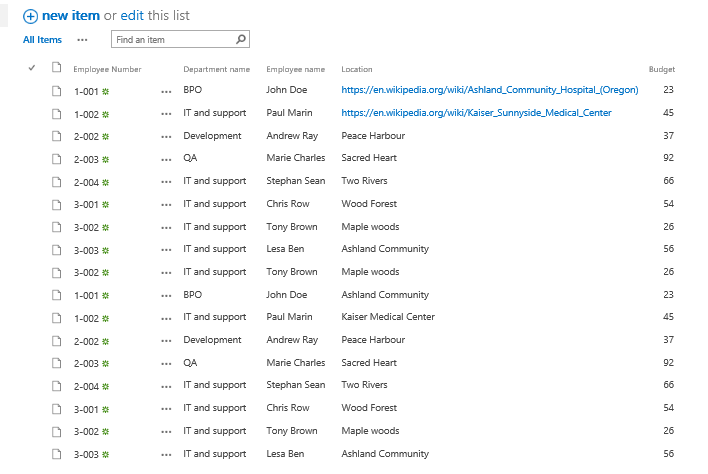
7. Your Published list will appear here.
Option 2: When you already have a SharePoint list and want to add more data/ records or move files below the existing SharePoint list.
We assume that you have an excel sheet with all your master data in the format. You also have a SharePoint list at a site/ subsite which has some records already there and you want to add more data in the same list through the above excel sheet. Let’s check how we can do this by following these simple steps:
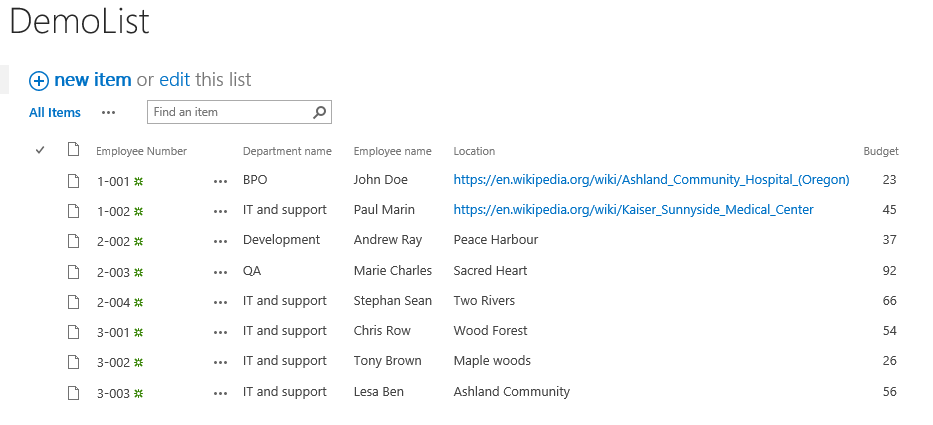
1. Open the link where you want to add your updated data in the SharePoint list and click on the “edit” button.
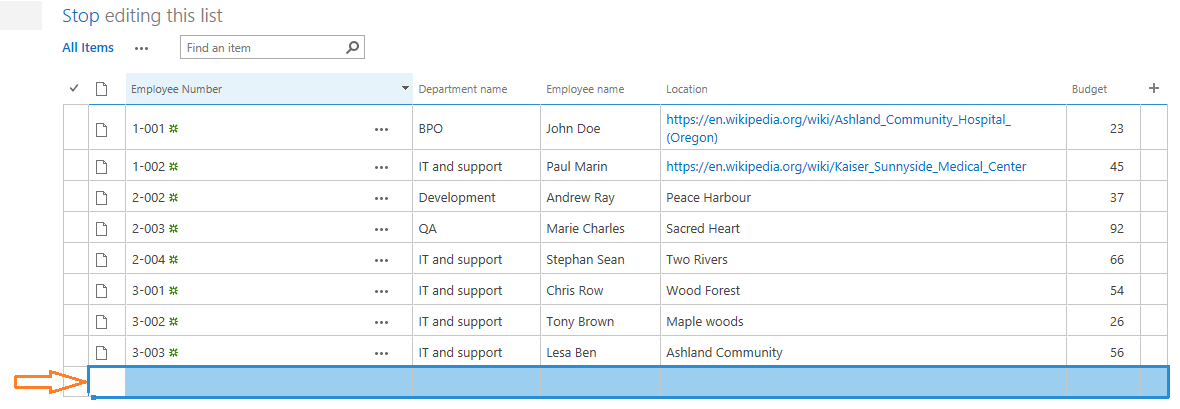
2. Select the last row of the list where you want to add the data or table.
3. Now select all the values in excel that you want to copy into your SharePoint list.
4. Paste the data on the selected row in your SharePoint list.
5. Click on stop button to stop editing once you have added all the excel data.
6. Refresh the list to check out if you have successfully imported all excel data into the list.
So, I believe, now you can easily import Excel to SharePoint list without any difficulty. Still, if you have any questions or run into an error, feel free to contact us at contact@beyondintranet.com and we will be able to revert you in less than one business day.
At Beyond Intranet, we have a team of SharePoint expert developers who can help you with such and more issues on SharePoint or help you with answering your other questions as well. Just connect to us and leverage SharePoint benefits for your use case.
To import Excel into a SharePoint list in Microsoft SharePoint, first format your data as a table with headers. Then go to SharePoint → New → List → From Excel, upload your file, review column mappings, and click Create. The data will be converted into a new SharePoint list.
Yes, Excel data must be formatted as a structured table with column headers before importing. SharePoint cannot detect data correctly if it includes merged cells, blank rows, or unformatted ranges. Converting your data into a table ensures proper column mapping during the import process.
SharePoint does not provide a direct “import into existing list” option. To add Excel data to an existing list, match column names and data types, then use Grid View copy-paste or automation tools like Power Automate for larger or recurring imports
No, importing Excel into SharePoint creates a one-time data copy. Any changes made later in the Excel file will not automatically update the SharePoint list. For ongoing synchronization, you must use automation tools such as workflows or integration services.
To export a SharePoint list, open the list and select Export → Export to Excel. This downloads a file that opens in Excel with a refreshable connection. You can manually refresh the data in Excel to reflect updates made in SharePoint.
Excel imports may fail if the data is not formatted as a table, contains merged cells, lacks headers, or includes unsupported column types. Insufficient permissions in SharePoint can also prevent imports. Always clean and validate your Excel file before attempting to upload it.
While SharePoint can store more than 5,000 items, it has a list view threshold that may impact large imports. Importing very large Excel files can cause performance issues. For large datasets, consider breaking the file into batches or using automation tools.
SharePoint supports common column types such as single line of text, multiple lines of text, number, and date/time. However, advanced Excel features like formulas, macros, and complex formatting may not convert properly during the import process.
The Export to Excel option may appear disabled if you lack the necessary permissions, have selected specific list items, or are using a restricted view. Ensure you are viewing the full list and have appropriate access rights to export data.
Yes, Excel to SharePoint data transfer can be automated using tools like Power Automate or integration services. Automation is recommended for recurring imports, large datasets, or workflows that require regular synchronization between Excel files and SharePoint lists.